

Magic deployment
Magic Containers Quickstart
Single region deployment
Single region deployment gives you full control over provisioning settings, allowing you to deploy to the closest single region without the worry of any scaling. This is ideal for scenarios where you are wanting fast deployment and no auto-scaling.1
Login to bunny.net
Login to bunny.net dashboard.
2
Add a new app
Select Magic Containers and click the Add App button.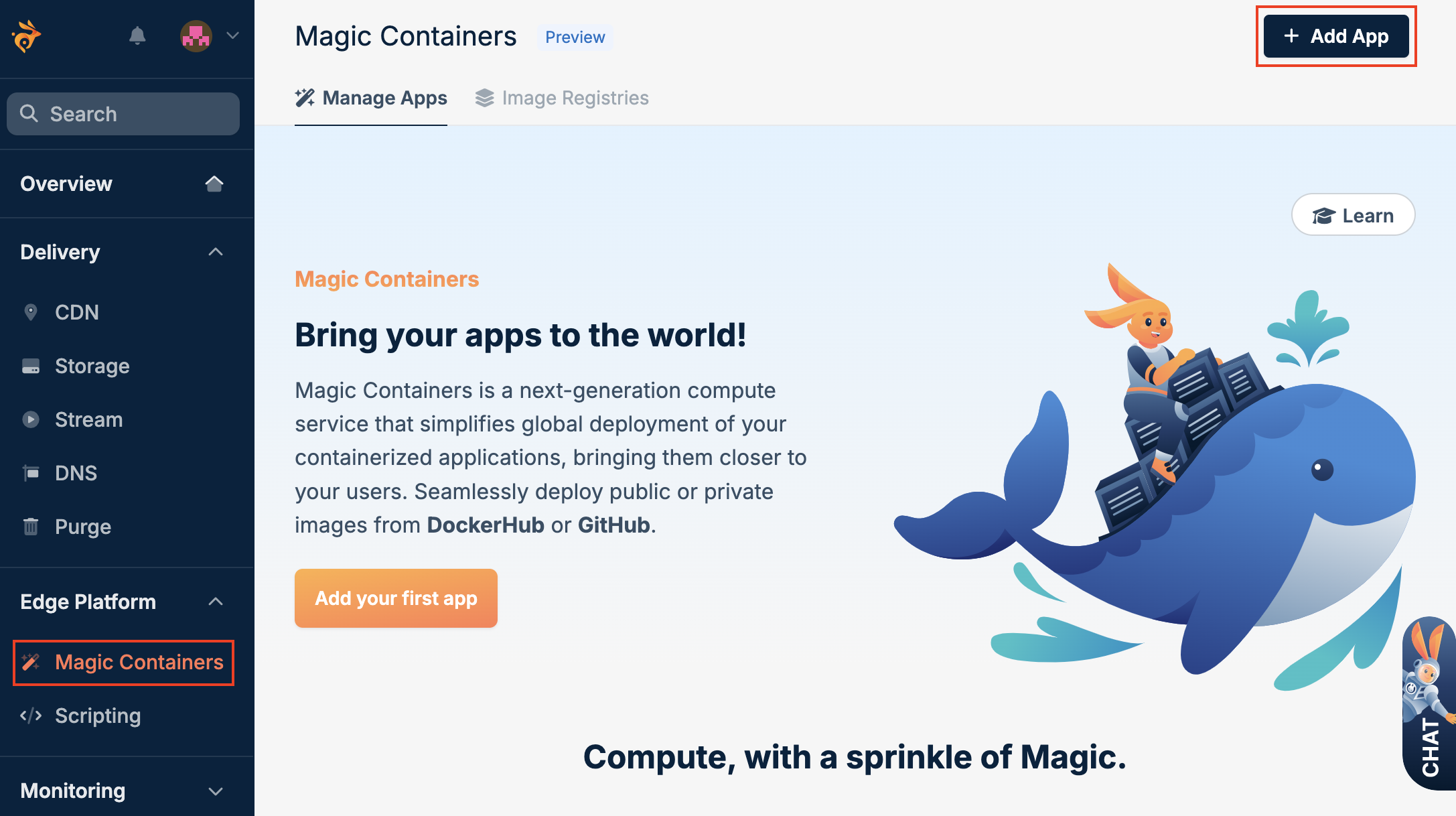
3
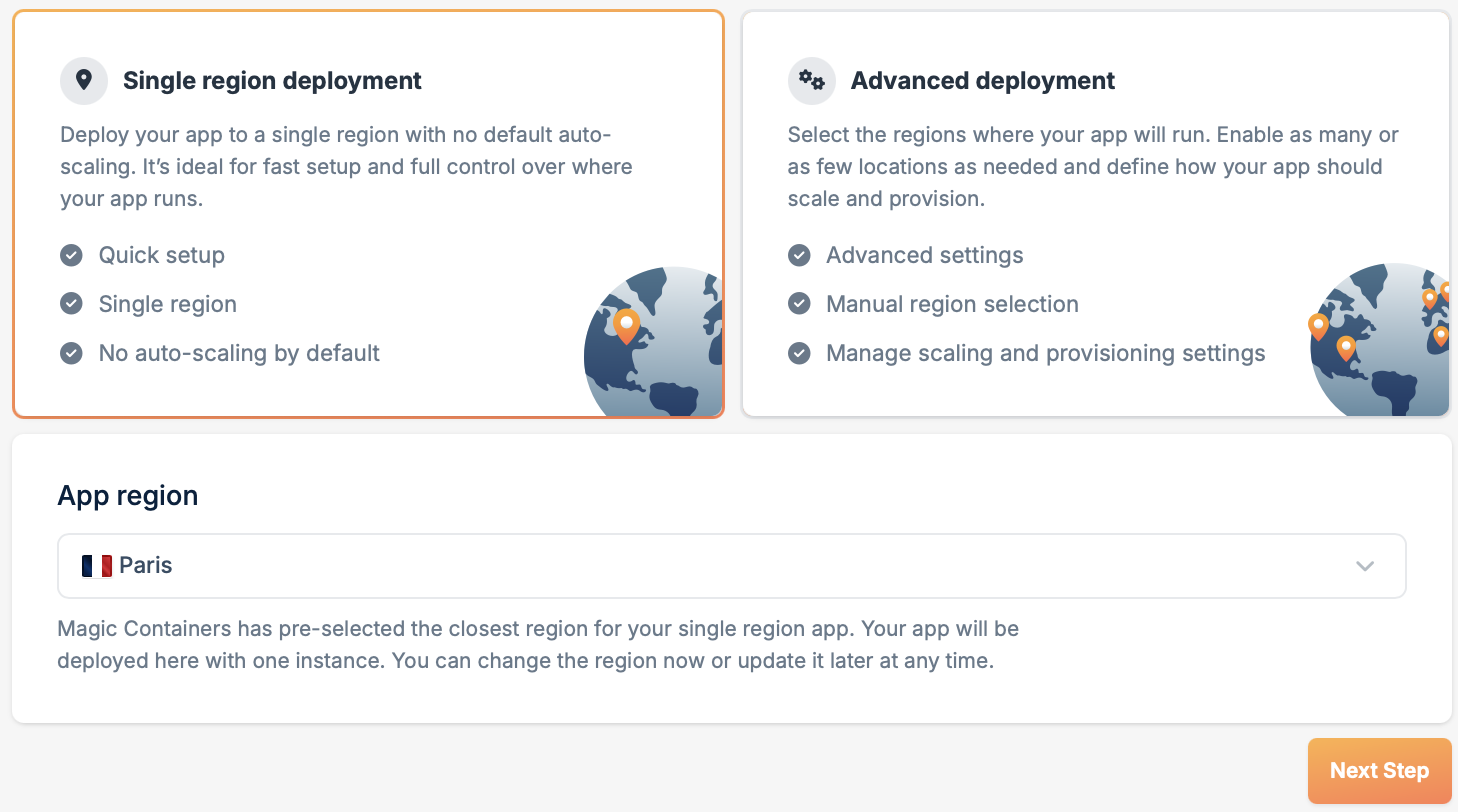
Select Single region deployment
Select the Single region deployment option, define the name of your app, and click Next Step.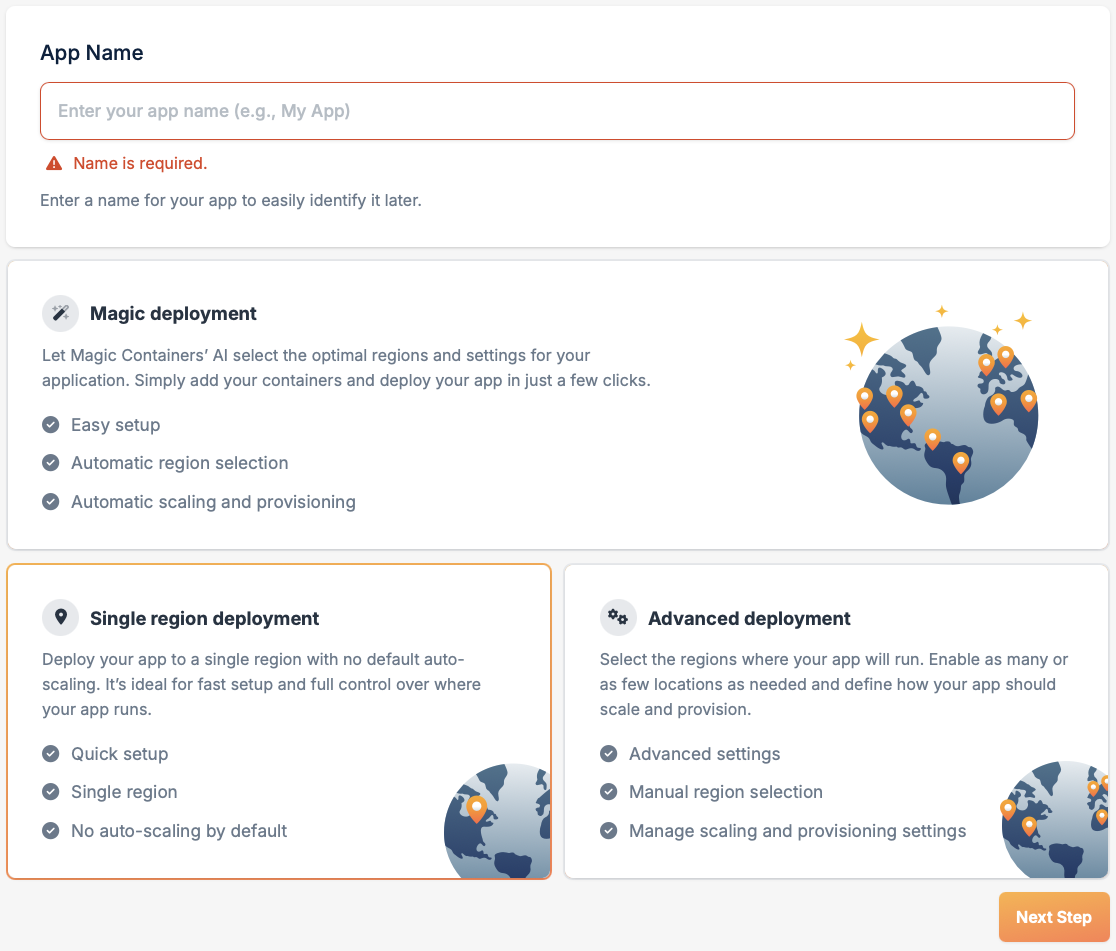
4
Configure App region
After selecting Single region deployment, configure your App region. You will be presented with your closest region preselected and a list of all available regions.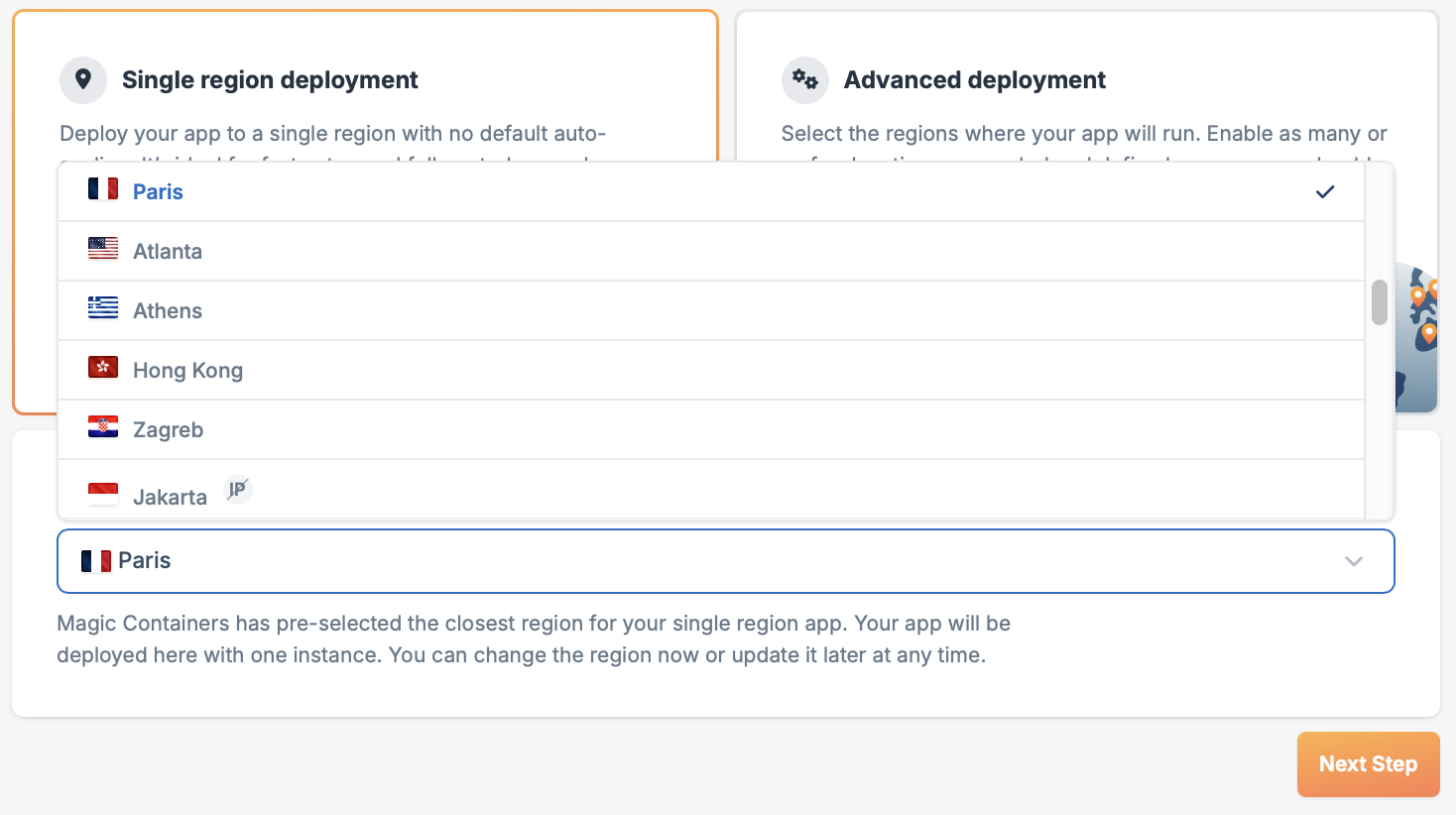
5
Add your container
Click Add Container.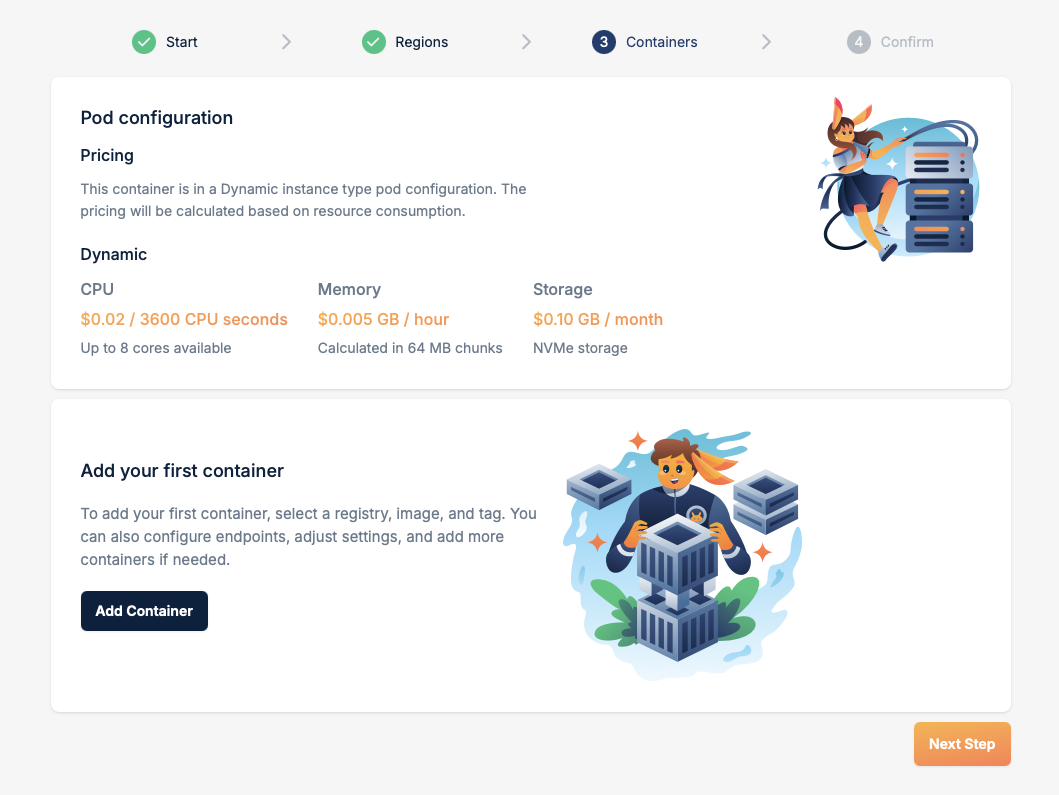
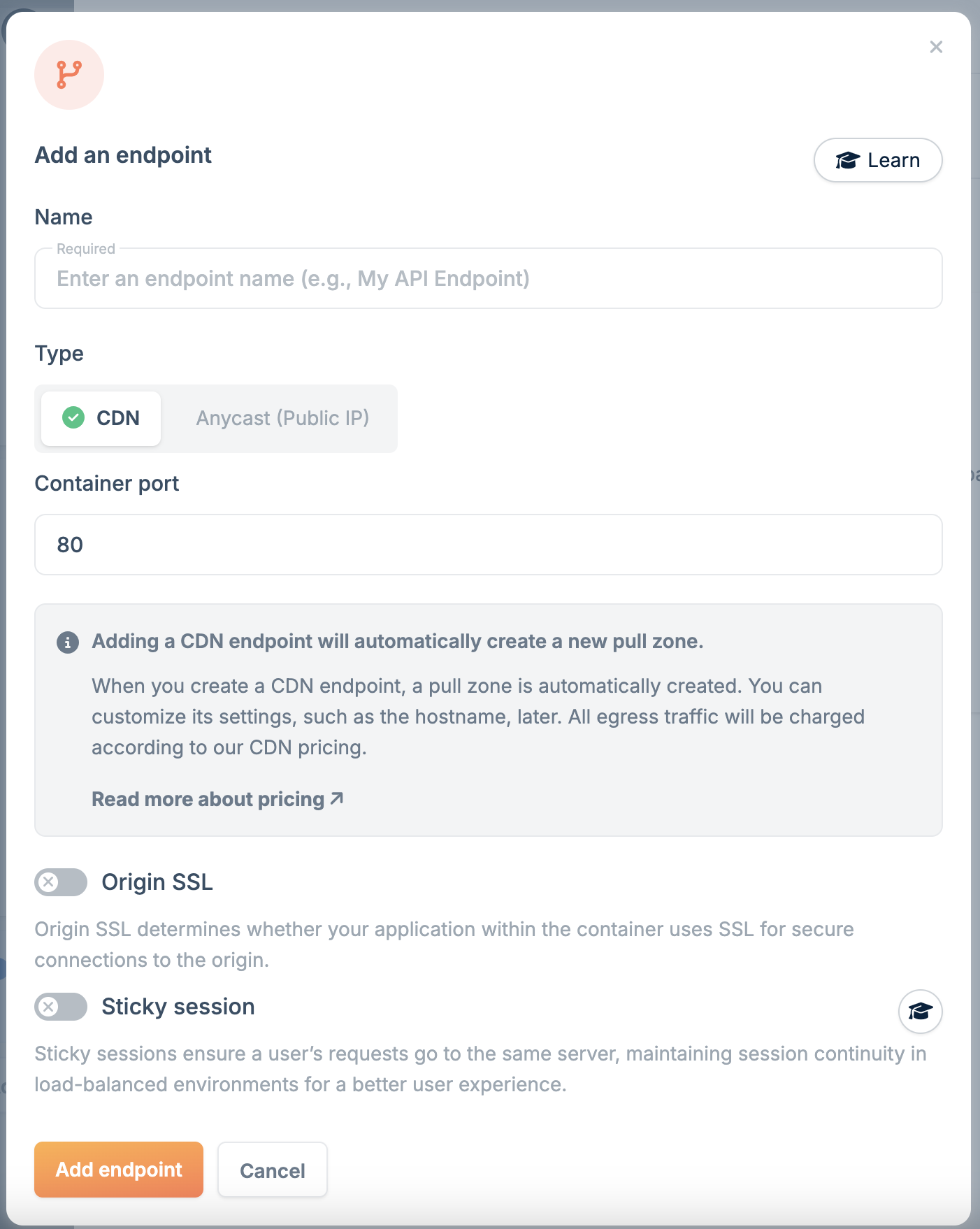
- You need to name the endpoint (it must have a unique name).
- Decide how you want to expose the app, either using CDN or Anycast.
- Define the container port, which is the port on which the application is listening inside the container.
- Specify whether your application inside the container uses SSL for origin (only CDN setting).
6
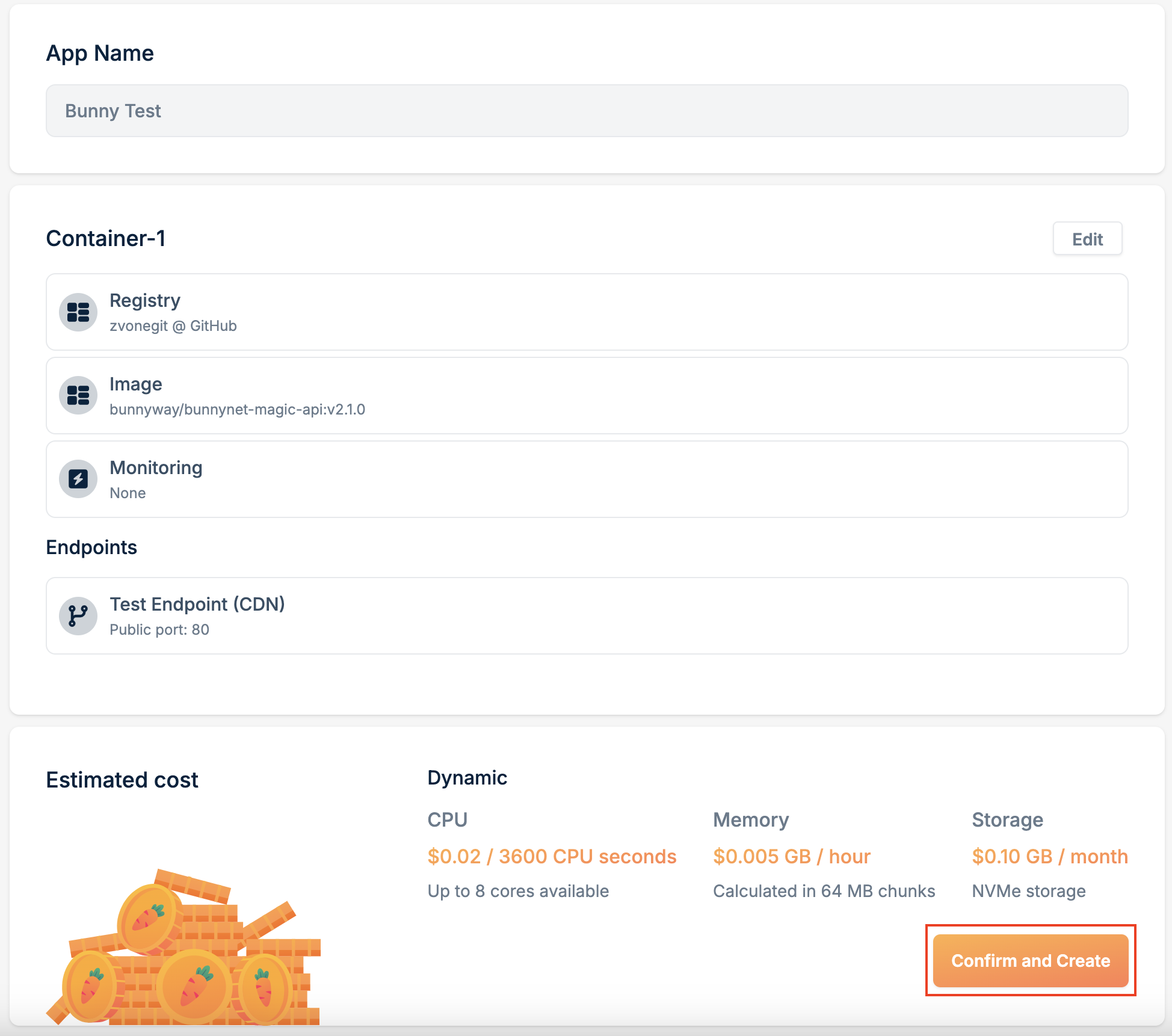
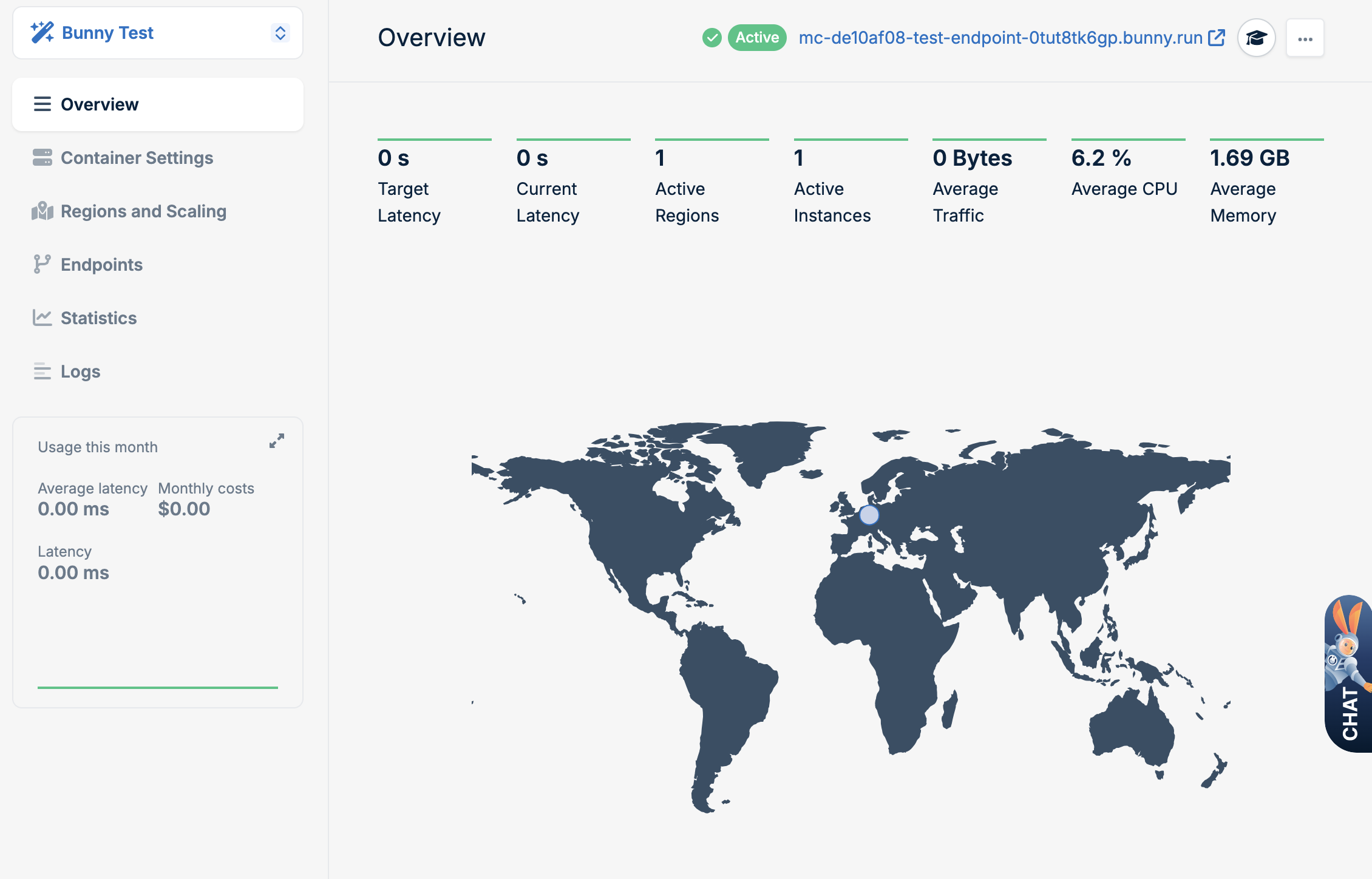
Review and create
Review your settings. If everything looks good, click Next Step.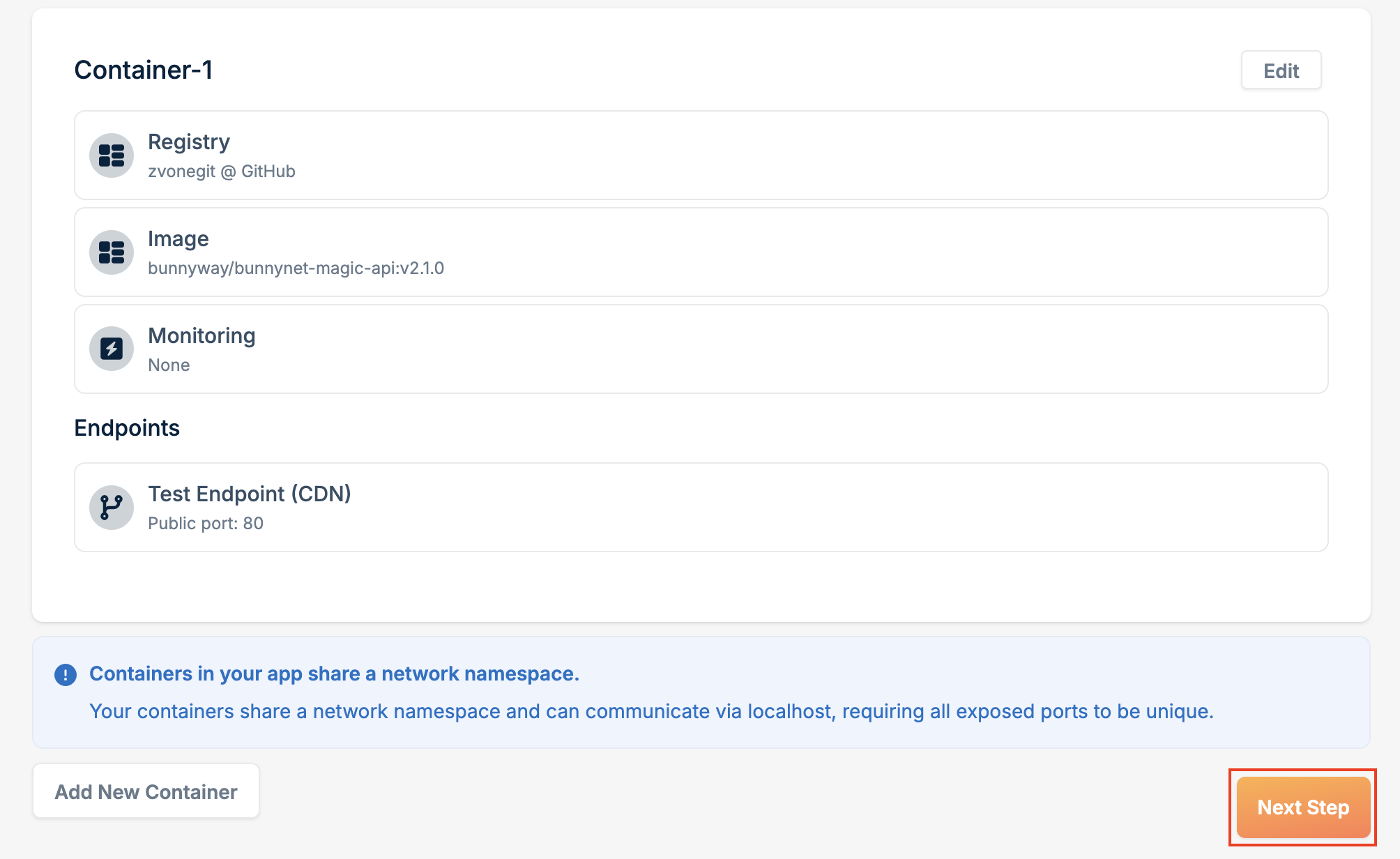

Advanced deployment
1
Login to bunny.net
Login to bunny.net dashboard.
2
Add a new app
Select Magic Containers and click the Add App button.
3
Select Advanced deployment
Select the Advanced deployment option, define the name of your app, and click Next Step.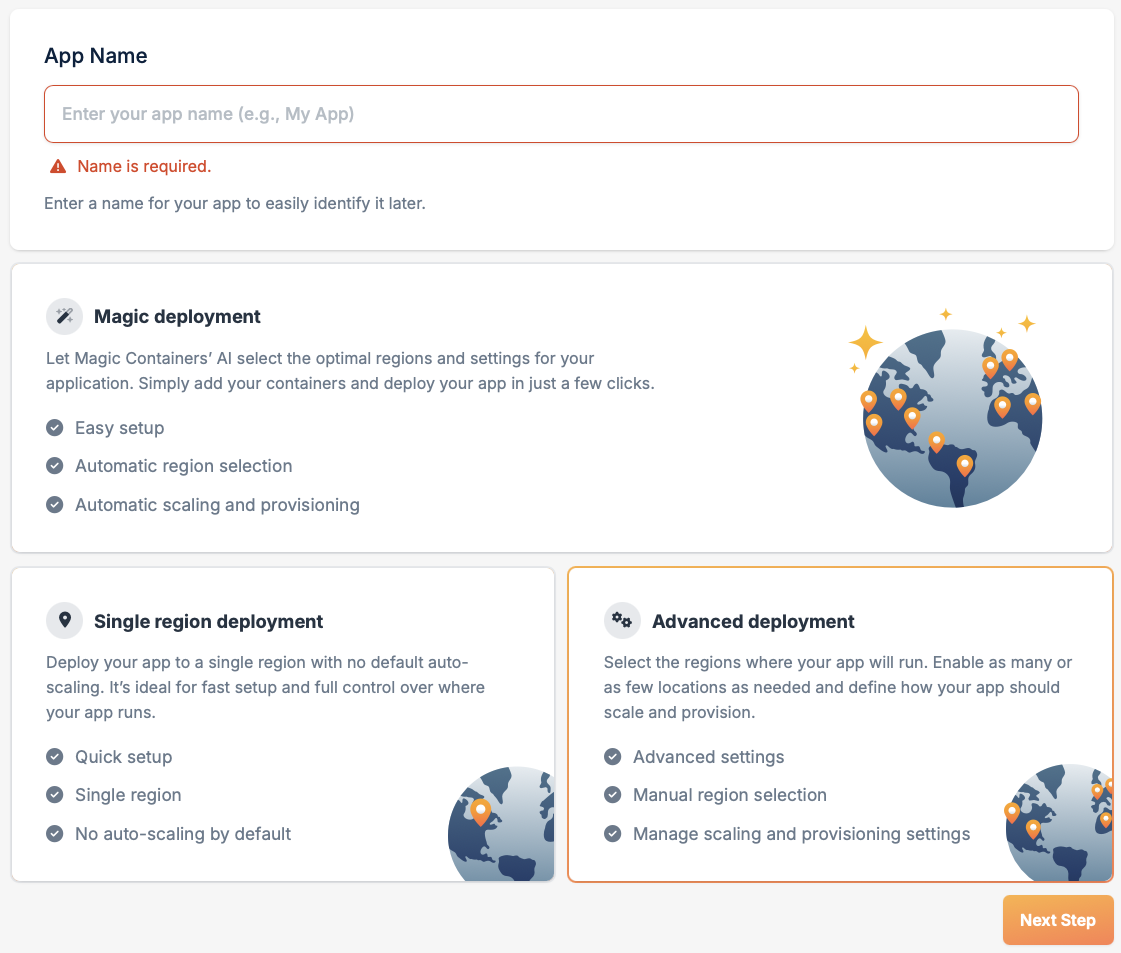
4
Configure Region Settings
You will be presented with a list of all available regions. For each region, you can set whether it is a base region or a standard region: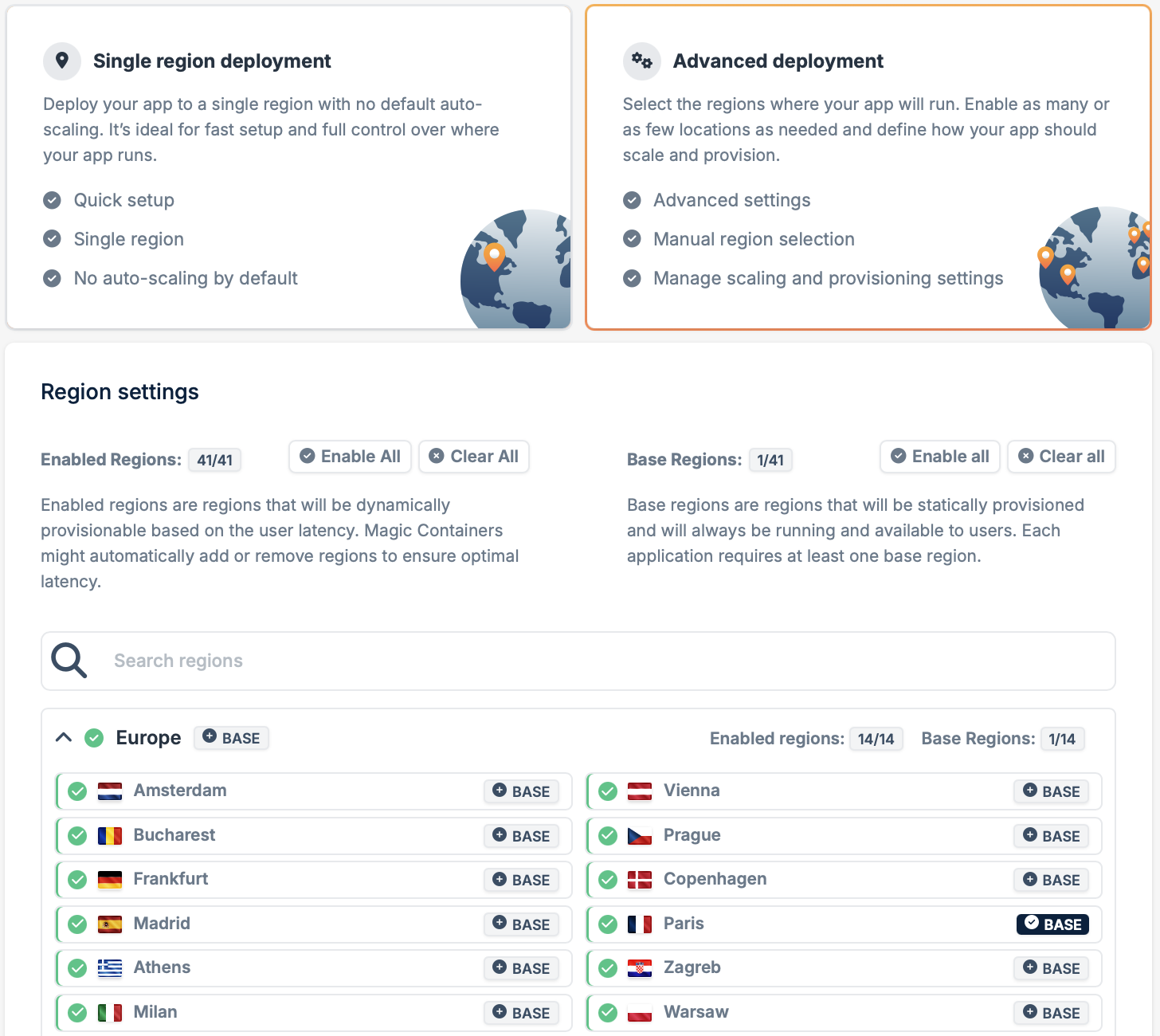
- Base region: Regions where your app will always be deployed. You must select at least one base region and there is no maximum limit.
- Enabled region: The provisioning system will actively monitor user locations and behavior. If it identifies active users in a specific region, it will dynamically deploy the app to accommodate the user traffic. Conversely, if there is no user activity in a region, the app will not be deployed in that area.
- If the Enabled Regions and Base Regions are equal, the provisioner will use Static Provisioning. In this mode, the regions deployed over time will remain the same.
- If the sets are different, the provisioner will use Auto Provisioning. Regions are chosen based on end-user activity. If users are active in a region, the app will be deployed there. If there are no active users in a region, the app won’t be deployed.
5
Configure instances and add container
Set the minimum and maximum number of instances (maximum is 10), and click Add New Container.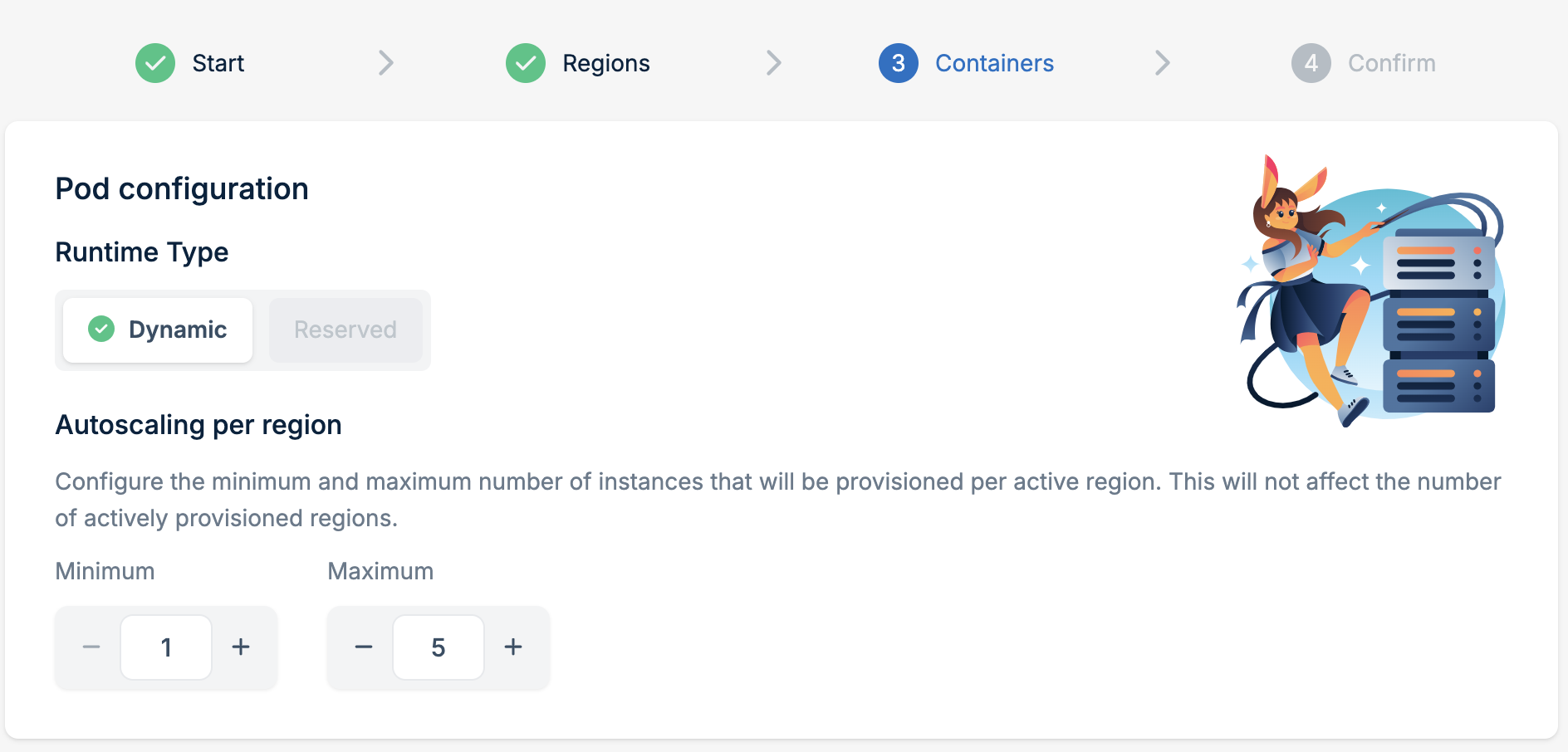
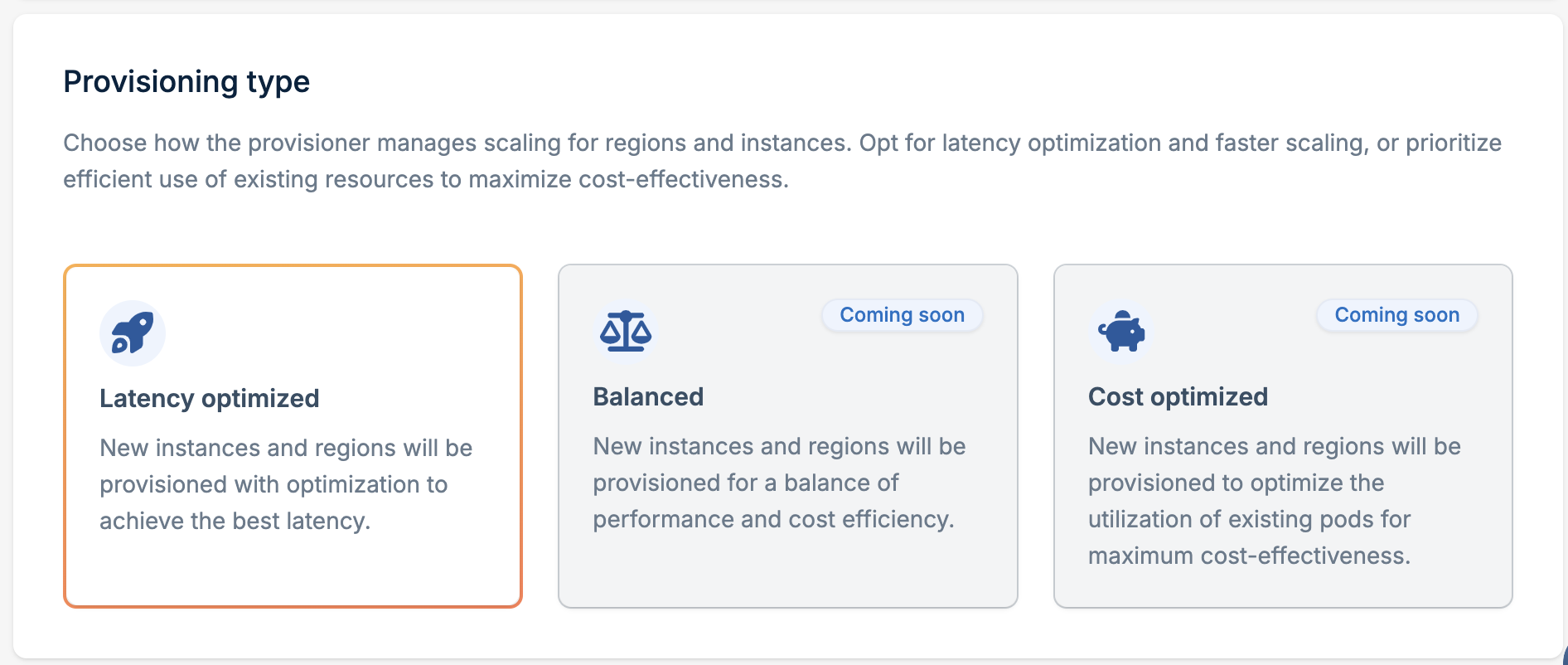
- You need to name the endpoint (it must have a unique name).
- Decide how you want to expose the app, either using CDN or Anycast.
- Define the container port, which is the port on which the application is listening inside the container.
- Specify whether your application inside the container uses SSL for origin (only CDN setting).
6
Review and create
Review your settings. If everything looks good, click Next Step.