Bunny CDN caches files from your Microsoft Azure Blob Storage container and delivers them from a global edge network, speeding up delivery and reducing egress costs. This guide walks you through the setup in three steps.
Prefer to keep your files on bunny.net? Bunny Storage is globally replicated object storage with tight CDN integration, and it offers an S3-compatible API (currently in beta).
1

Configure your container and upload some blobs

Set up an Azure Storage container and upload some data, following Microsoft’s quickstart.
2

Get the container URL and create a Pull Zone

Click the three dots to the right of your file, then select Blob Properties.
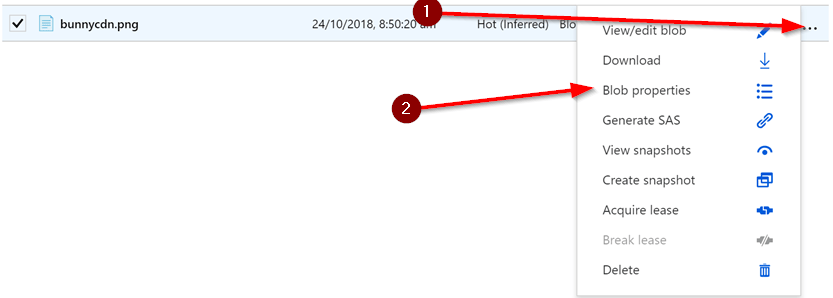
Opening Blob Properties
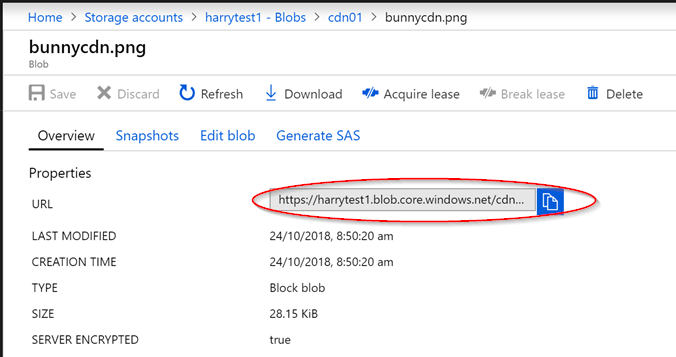
Copy the blob URL. It looks like this:
https://harrytest1.blob.core.windows.net/cdn01/bunnycdn.png
The blob URL in Blob Properties
For the Pull Zone origin you only need the hostname and container path, so remove the file name:
https://harrytest1.blob.core.windows.net/cdn01/
Log in to your bunny.net dashboard and create a new Pull Zone. Give it a name (this becomes your CDN hostname), paste the trimmed URL into the Origin URL field, choose your pricing tiers, and click Add Pull Zone. For details, see How to create your first Pull Zone.
Adding a Pull Zone with the Azure container as origin
3

Test your Pull Zone

Once the configuration has synced to the edge network, request a file through your Pull Zone hostname, for example:
https://azuretest.b-cdn.net/bunnycdn.png
If the file is served, Bunny CDN is caching content from your container. Replace your container URLs with the Bunny CDN URLs in your application to start serving cached content.
Last modified on July 3, 2026
