

Prerequisites
Your custom domain must point to Bunny using a CNAME record before SSL validation can succeed. See Custom Hostname for setup instructions. To issue a certificate before repointing your domain and avoid HTTPS downtime during migration, use Seamless Domain Migration instead, which validates ownership over DNS first.Free Let’s Encrypt certificate
1
Add your custom hostname
Open your Pull Zone in the dashboard, navigate to General > Hostnames, and add your custom hostname if you haven’t already.
2
Enable SSL
Find your hostname in the Linked Hostnames section and click Enable.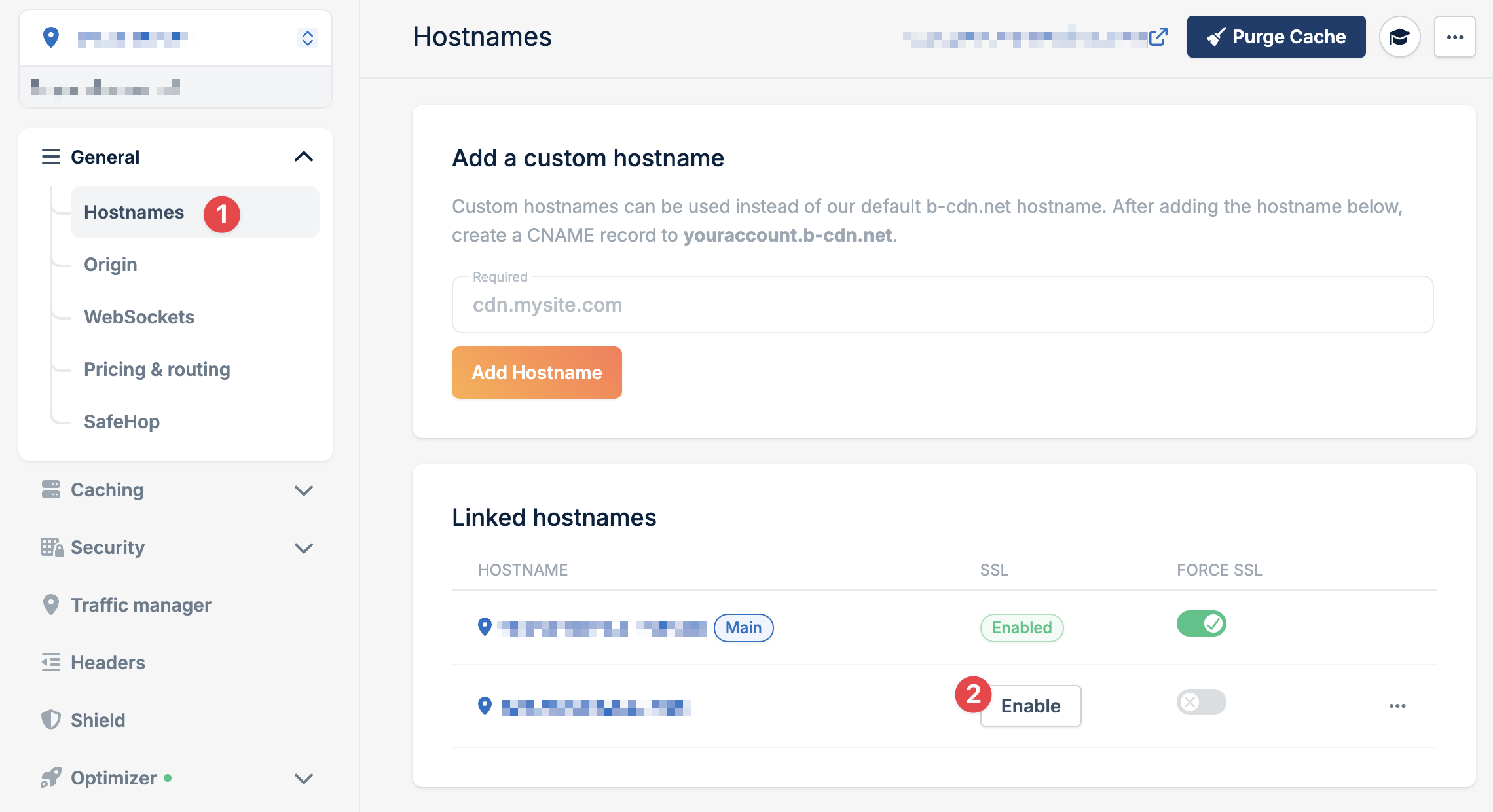
3
Select free certificate
Choose Add Free Let’s Encrypt Certificate and click Continue.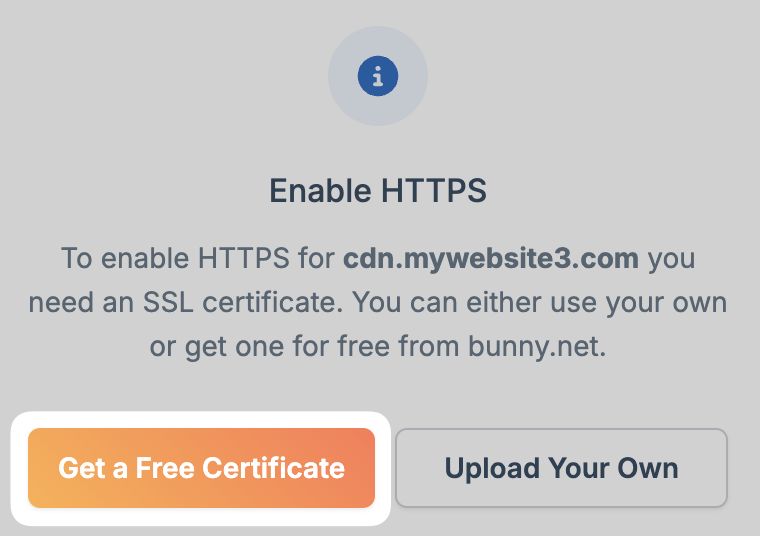
4
Confirm CNAME configuration
Verify your CNAME record is correctly configured and click Continue to complete validation.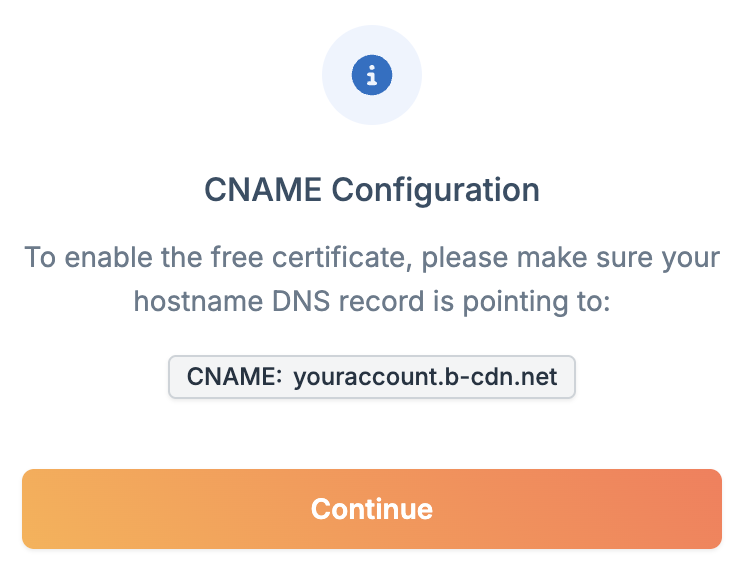
5
Verify it's working
Visit your domain using
https:// and confirm the certificate is valid. You can also use SSL Labs to test.Wildcard certificates
When your domain is hosted on a Bunny DNS zone, Bunny automatically issues and renews a free Let’s Encrypt wildcard certificate (*.yourdomain.com). Just follow the Free Let’s Encrypt certificate steps above with your wildcard hostname.
If your domain is hosted elsewhere, move it to Bunny DNS (DNS quickstart), or generate the wildcard certificate yourself (for example, with certbot using DNS validation) and upload it manually.
ACME passthrough to origin
If your origin requests its own certificates over ACME, Bunny forwards requests to/.well-known/acme-challenge/ through to the origin so it can complete validation and have a certificate issued directly to it.
Custom certificate
Use this option for certificates from commercial providers, or for wildcard certificates when your domain is not managed by Bunny DNS.1
Prepare your certificate files
Bunny requires Nginx-compatible format. Combine your certificate chain into a single file by placing your domain certificate at the top, followed by intermediate certificates in order. Save as a single
.pem file (e.g., fullchain.pem). You’ll also need your private key file.2
Enable SSL
Open your Pull Zone, go to Hostnames, find your hostname, and click Enable.
3
Select custom certificate
Choose Upload your own certificate and click Continue.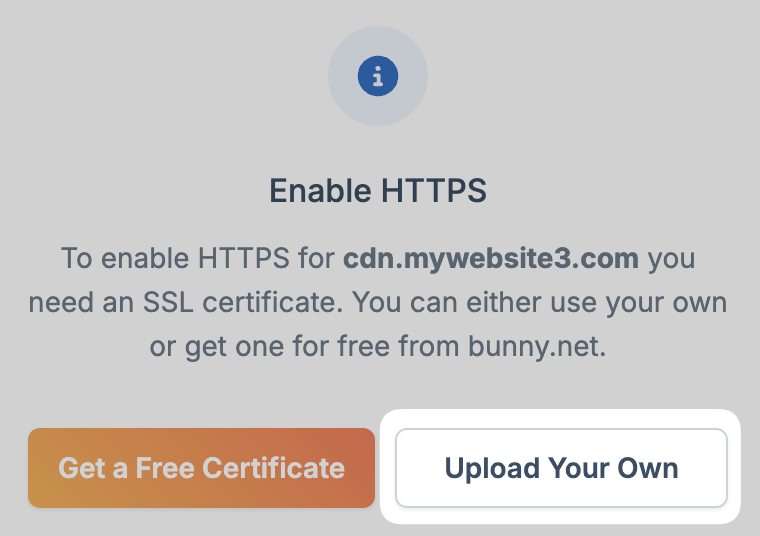
4
Upload the certificate
Paste your certificate chain and private key into the respective fields, then click Upload.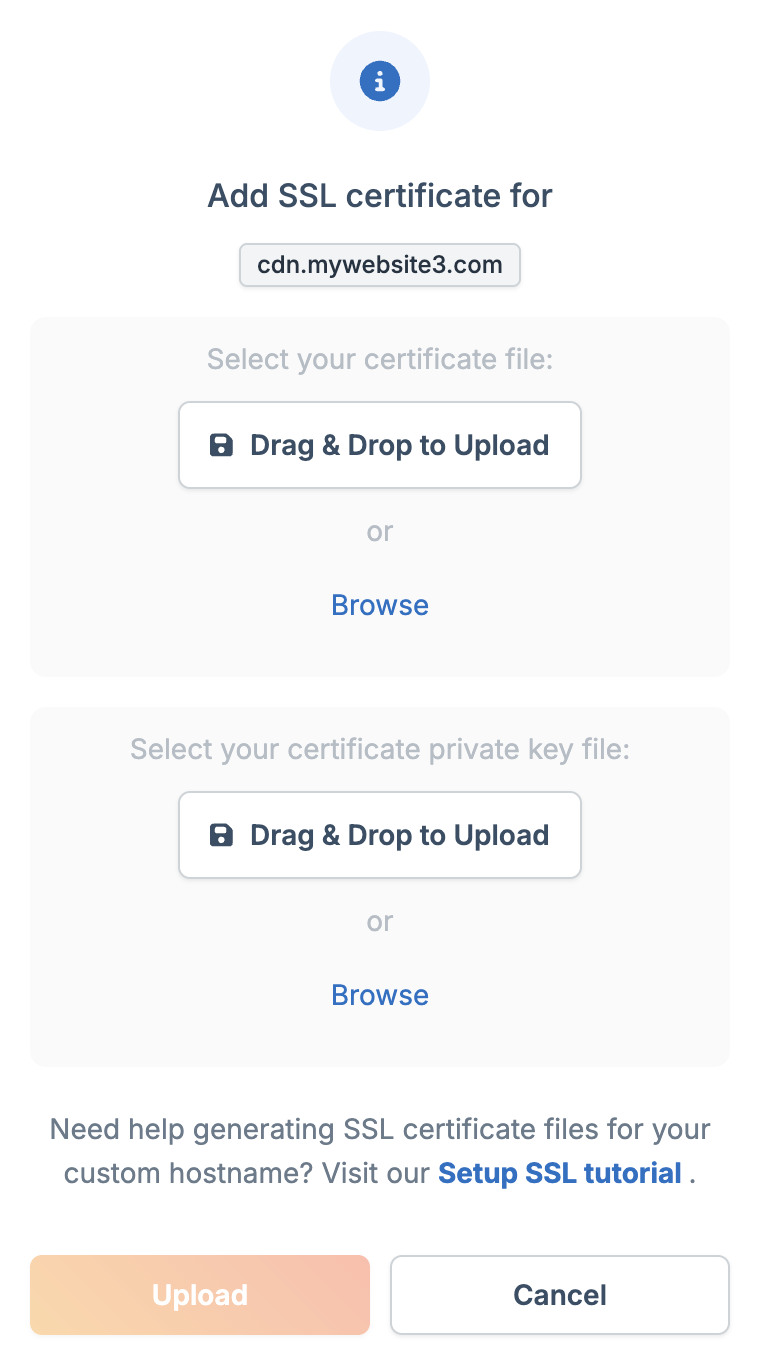
Troubleshooting
SSL validation fails
Common causes:- DNS not propagated: Use dnschecker.org to confirm your CNAME is resolving globally. After updating a DNS record, wait a few minutes before requesting the certificate so the change can propagate, otherwise our servers may read a stale cached record
- Incorrect CNAME record: Verify with a DNS lookup tool that your hostname returns a CNAME pointing to the exact hostname of your Pull Zone. If you use Bunny DNS, point your custom domain’s CNAME to your
b-cdn.netPull Zone hostname - Cloudflare proxy enabled: Disable the orange cloud icon on your CNAME record
- Geolocation blocks: Let’s Encrypt validates from multiple regions (including USA and Europe). If you’ve blocked these regions via Traffic Manager or Edge Rules, validation may fail
- CAA records: If your domain has CAA DNS records, add
letsencrypt.orgto the allowed issuers
Rate limiting
Requesting certificates too many times in a short period can trigger Let’s Encrypt rate limits (up to one week). Be patient when troubleshooting DNS issues before retrying. If you need SSL immediately while rate-limited, upload a custom certificate from another CA.Debugging a failed request
When a certificate request fails via the dashboard or API, the returned error includes an ACME challenge URL (likehttps://acme-v02.api.letsencrypt.org/acme/chall/...). Open it to see the exact reason the issuance failed. If you’re still stuck, contact support@bunny.net.
Root domains
CNAME records aren’t allowed at the apex level (yourdomain.com) by most DNS providers. You have two options:
- Use a subdomain like
www.yourdomain.comwith a CNAME, then redirect the apex to it - Use Bunny DNS with CDN Acceleration, which handles this automatically