Two-factor authentication (2FA) adds an extra layer of security to your account. When enabled, you’ll need to enter a PIN code from your authentication app each time you log in.

Enable two-factor authentication

1

Go to Two-Factor Setup

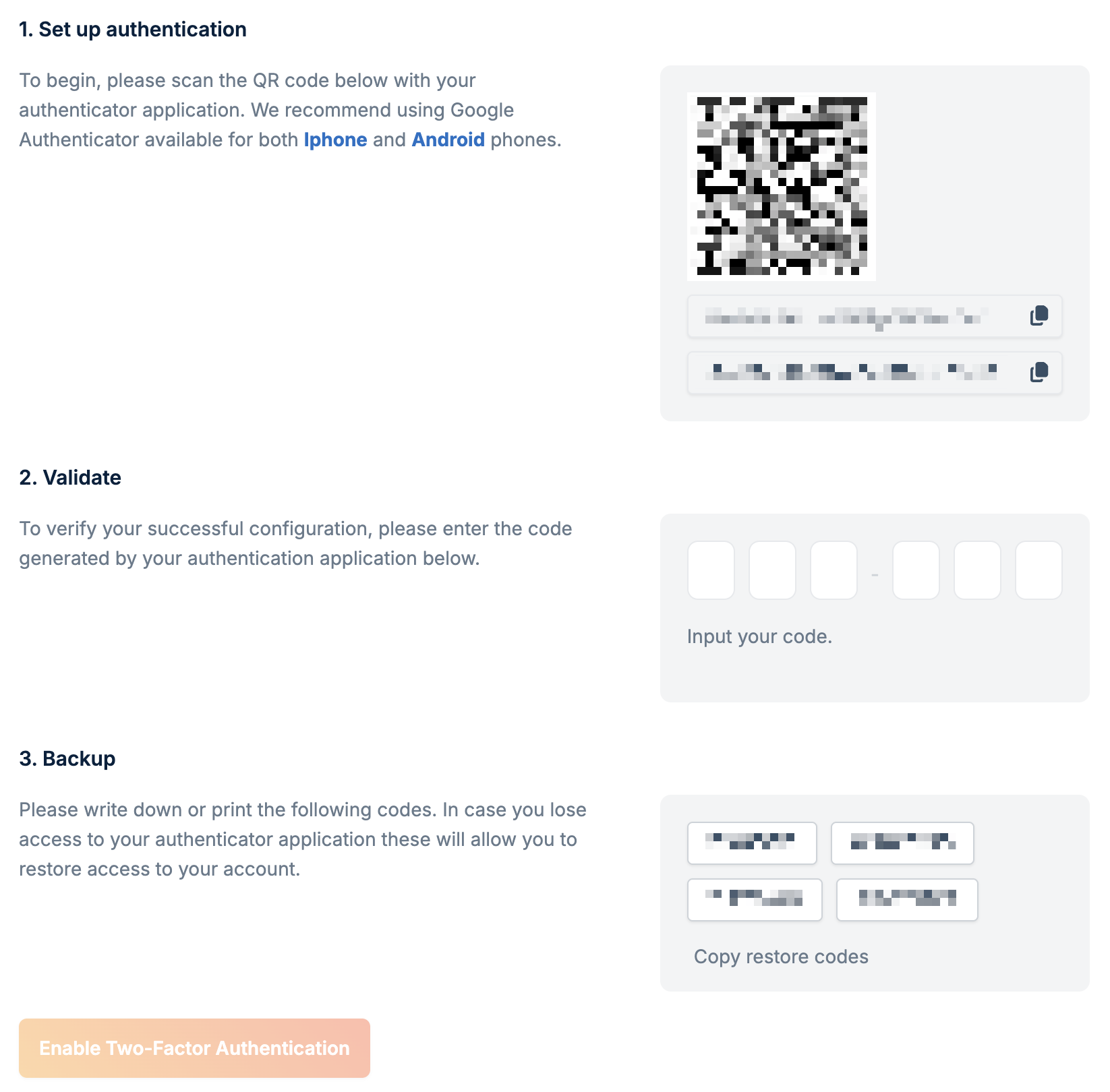
Navigate to Account Settings and click Enable Two-Factor Authentication, or go directly to the Two-Factor Setup page.
2

Scan the QR code

Open your authenticator app (such as Google Authenticator, Authy, or 1Password) and scan the QR code displayed.
3

Enter the verification code

Enter the 6-digit code from your authenticator app to validate the setup.
4

Save your backup codes

After validation, you’ll receive backup codes. Store these in a safe place - you can use them to access your account if you lose access to your authenticator app.
Two-factor authentication
settings

Backup codes

Backup codes are one-time use codes that let you log in if you lose access to your authenticator app. Each code can only be used once.
Store your backup codes securely. If you lose both your authenticator app and your backup codes, you’ll need to contact support to regain access to your account.

Supported authenticator apps

Any TOTP-compatible authenticator app works with bunny.net, including:
  • Google Authenticator
  • Authy
  • 1Password
  • Microsoft Authenticator
  • Bitwarden

Disable two-factor authentication

To disable 2FA, return to Account Settings and click Disable Two-Factor Authentication. You’ll need to enter a code from your authenticator app to confirm.
Disabling two-factor authentication reduces the security of your account. Only disable it if necessary.