1
Login and navigate to scripting
Login to bunny.net dashboard, then navigate to Edge Platform > Scripting and click Add Script.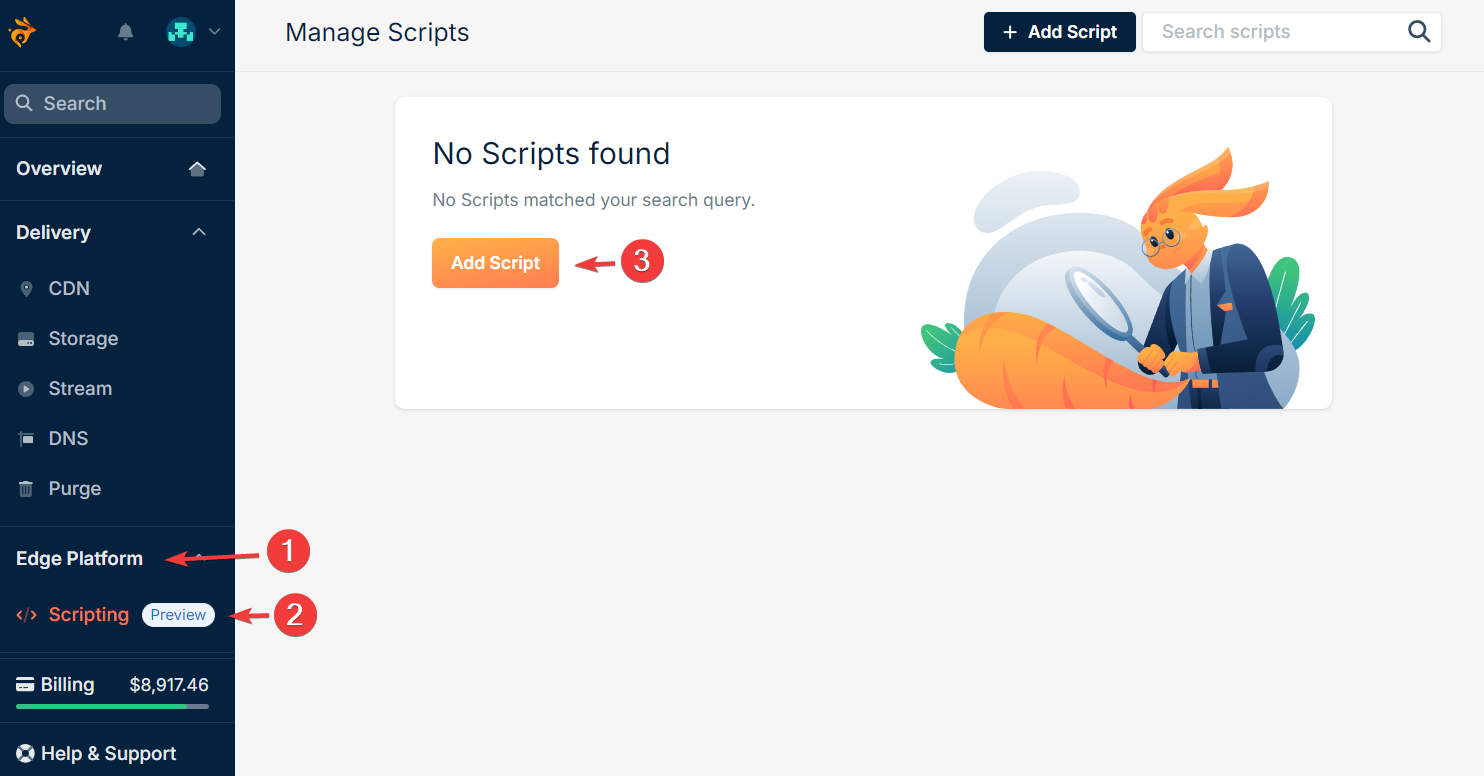
2
Select a script type
Provide a name for your script and select a script type:Click Add script.
- Standalone
- Middleware
Select Standalone type and then Default standalone template.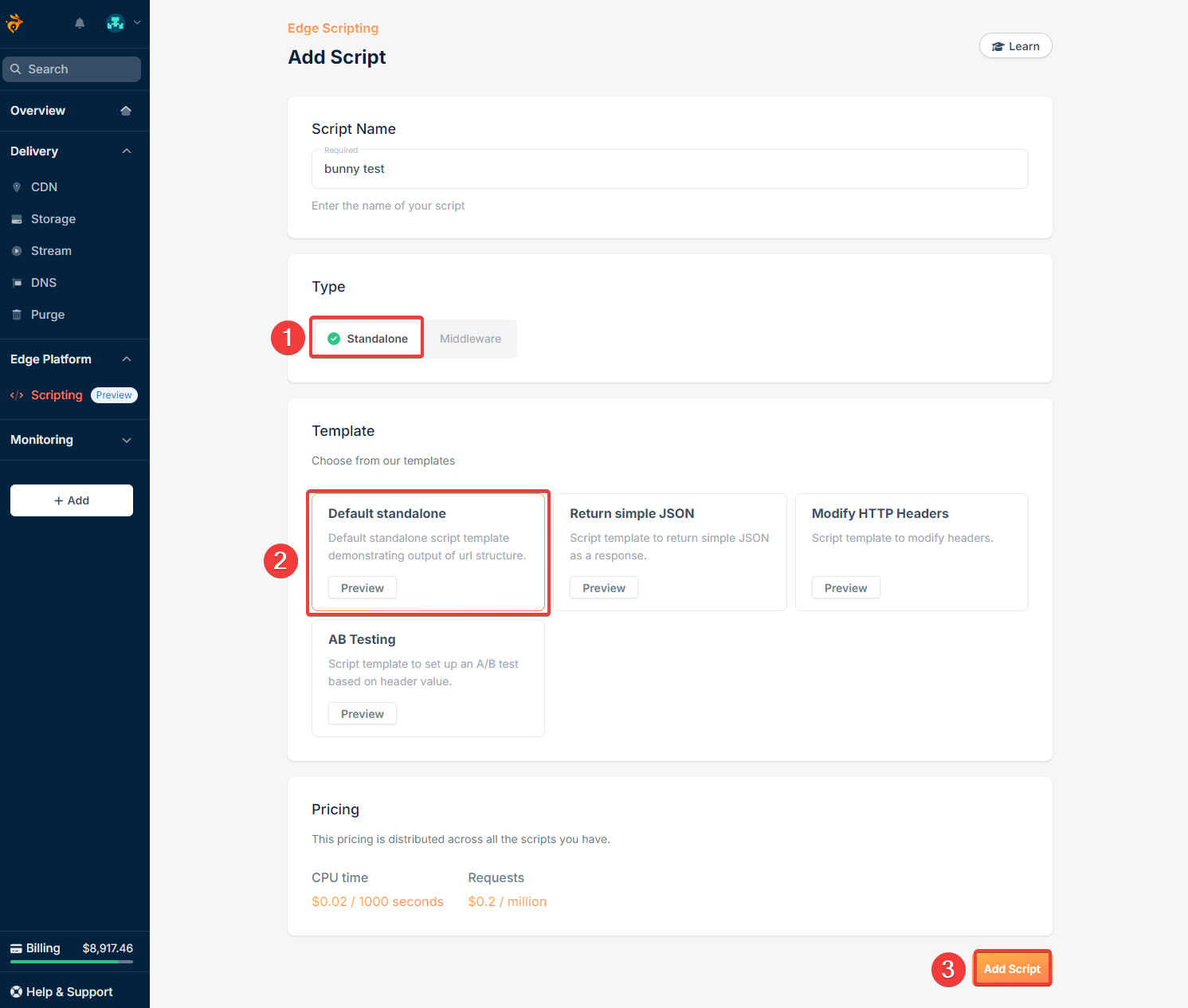
3
Explore the script editor
An underlying pull zone is automatically set up for your script, making it accessible from the outside through a unique URL. Your new script starts with a placeholder function that issues a simple “Hello from” when accessed through its URL.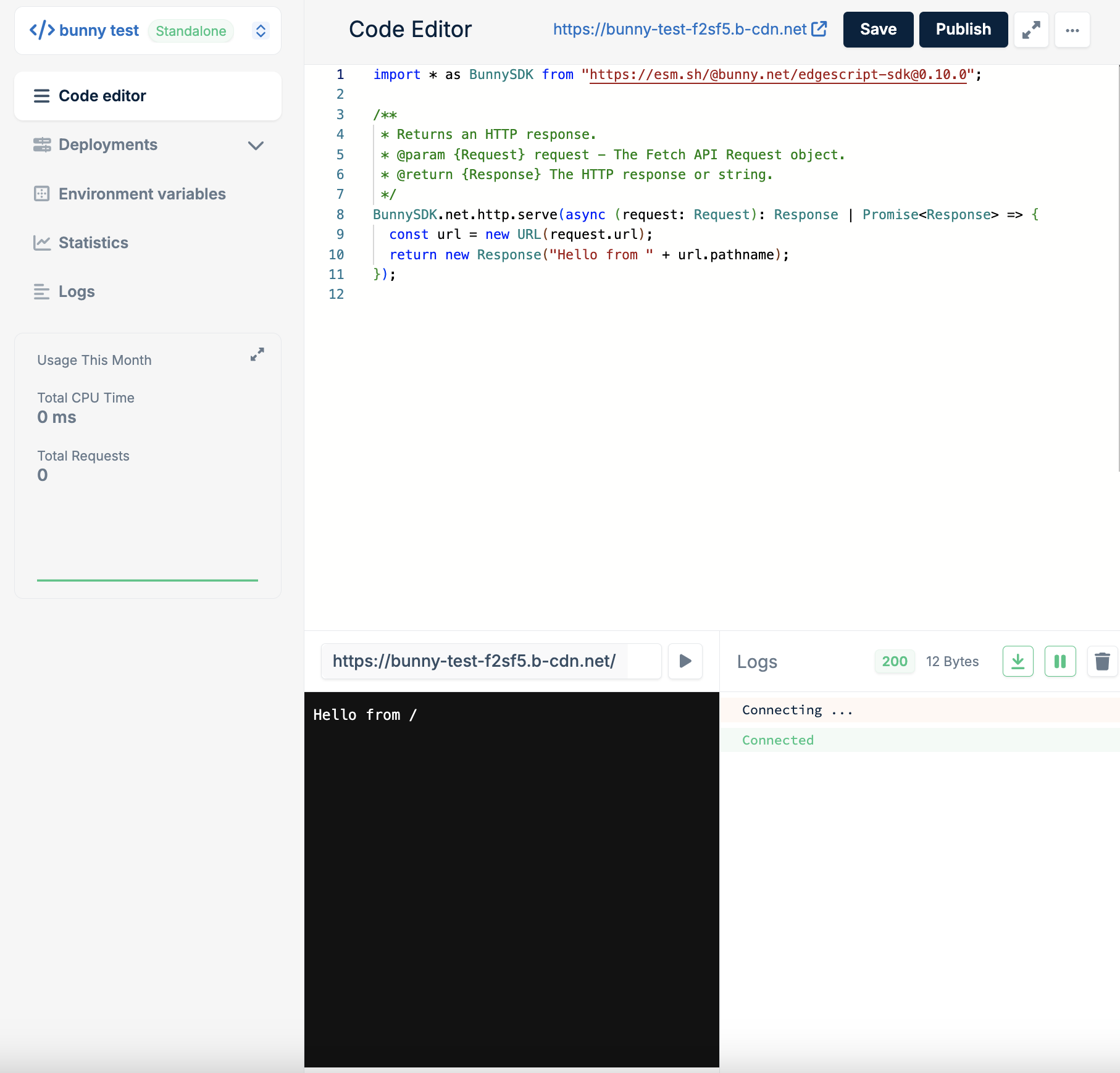
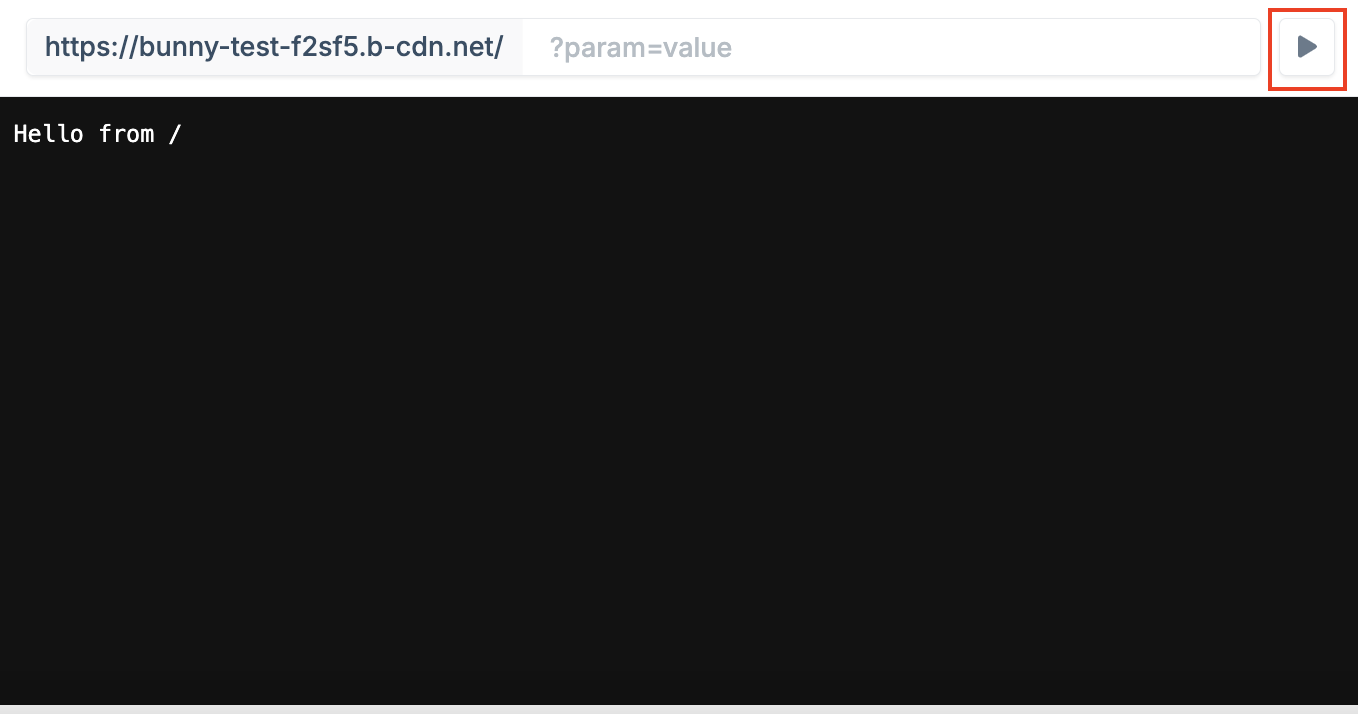
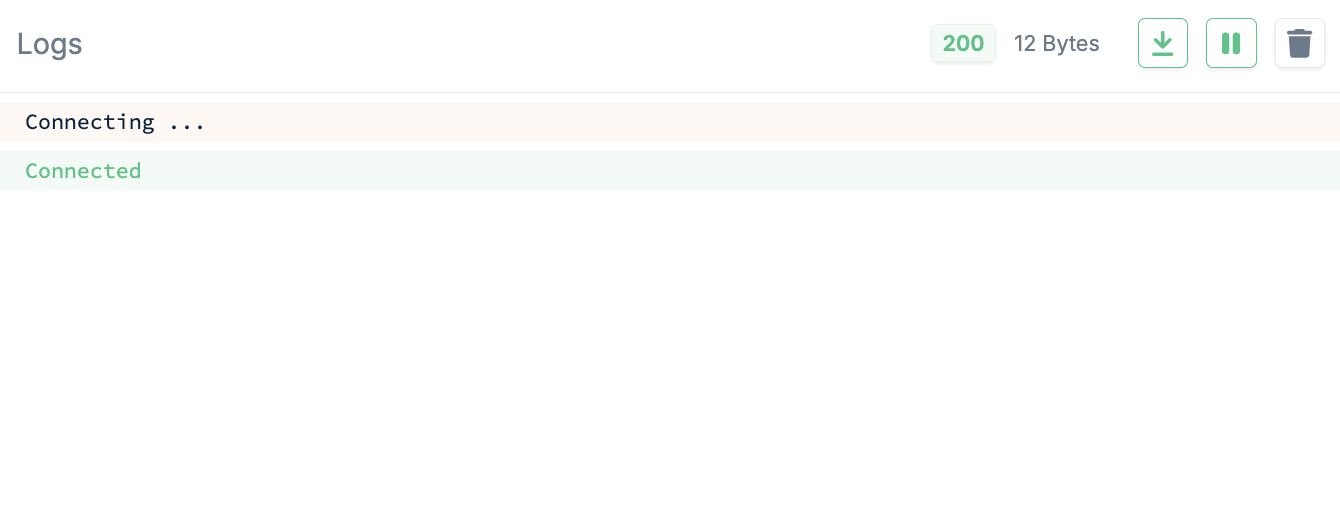
console.log calls made by the script when it is run in the preview pane.4
Edit and test your script
Edit your script to customize its functionality. You can replace the
placeholder with your desired code. Use the provided URL to test your script
and ensure your changes work as expected.
5
Save and publish
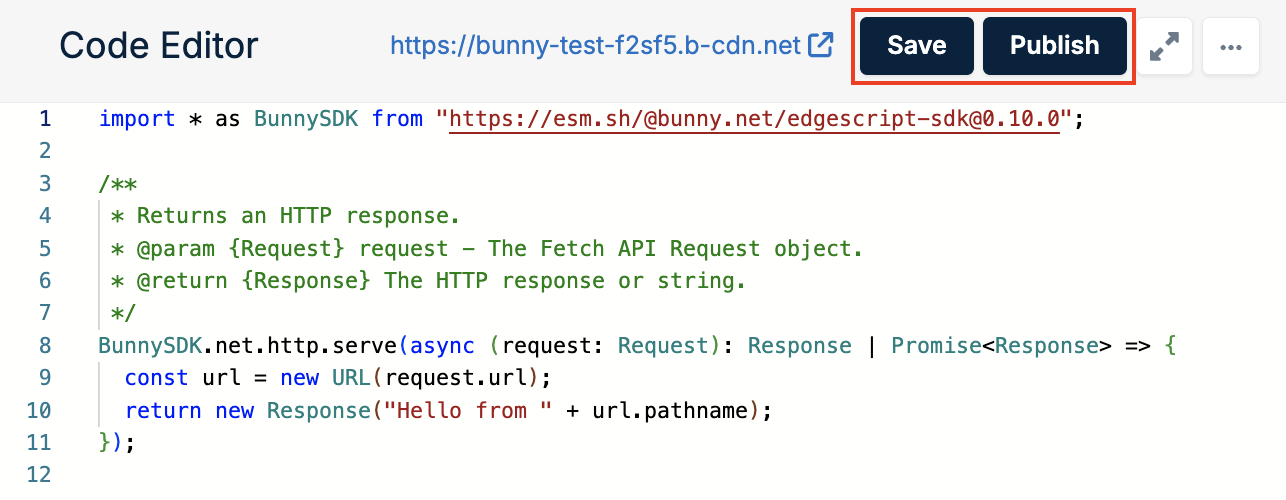
When you are happy with your script, click Save and Publish.