

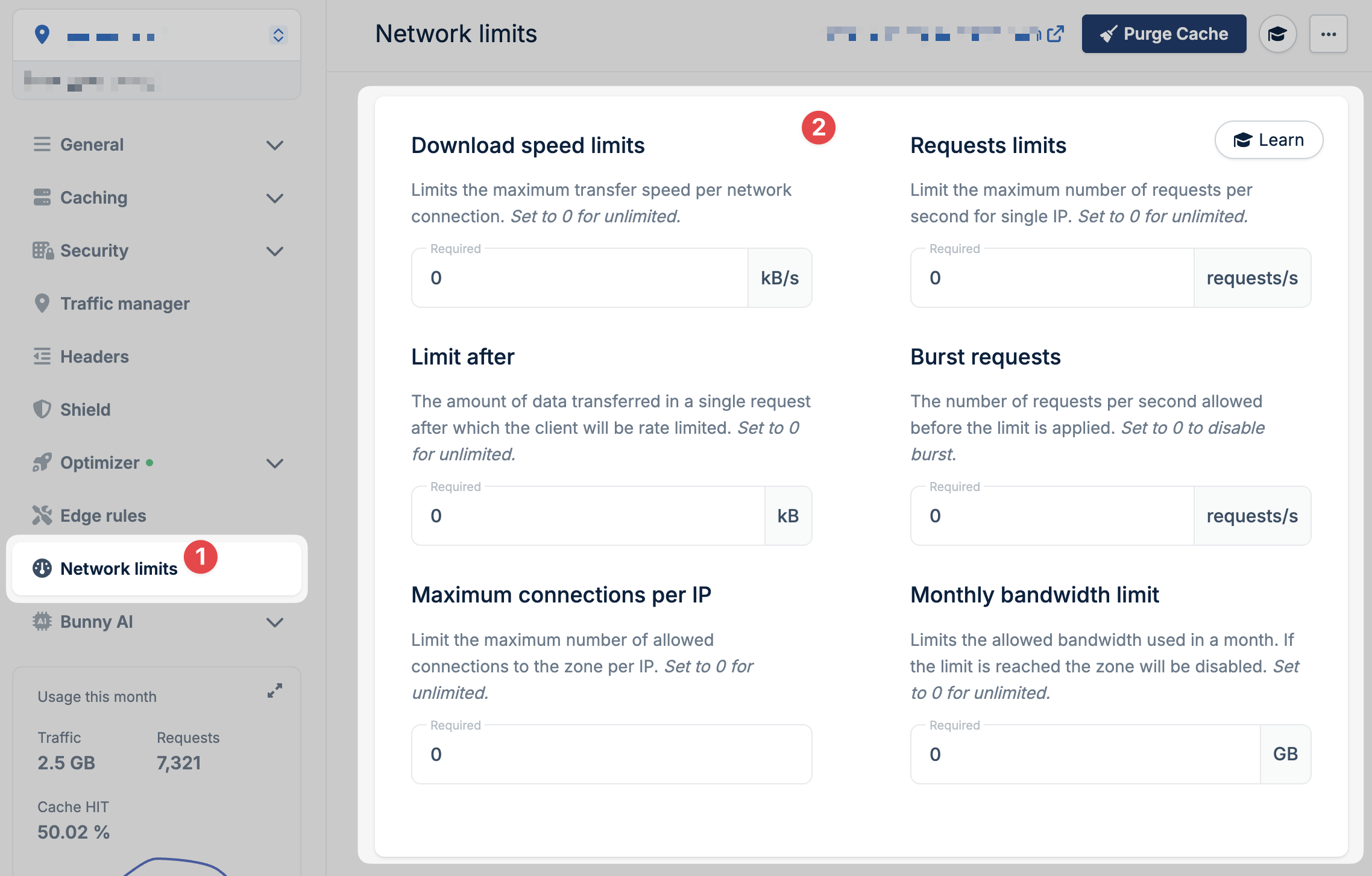
Download speed limits
Limits the maximum transfer speed per network connection, in kB/s. Set to0 for unlimited.
This setting works together with Limit after (see below).
Limit after
The amount of data transferred in a single request after which the client will be rate limited, in kB. Set to0 for unlimited (rate limiting applies immediately if Download speed limits is set).
For example, if Limit after is set to 2000, the first 2 MB of each request transfers at full speed. After that, the Download speed limit kicks in.
This is useful for video delivery. It allows fast video seeking while
preventing the browser from downloading too much unnecessary data ahead of
playback.
Requests limits
Limits the maximum number of requests per second for a single IP. Set to0 for unlimited.
This helps prevent abuse and reduces the impact of simple DDoS attacks.
Burst requests
The number of requests per second allowed before the limit is applied. Set to0 to disable burst.
This allows users to briefly exceed the rate limit, which is useful when:
- A webpage loads and makes many simultaneous asset requests
- A user opens multiple tabs at once
Maximum connections per IP
Limits the maximum number of allowed connections to the zone per IP. Set to0 for unlimited.
Use this to:
- Prevent users from downloading many files at the same time
- Mitigate DDoS attacks
This limit is applied per server. If a user connects to multiple Bunny
locations or a location has multiple IPs, the limit applies separately to each
server.
Monthly bandwidth limit
Limits the allowed bandwidth used in a month, in GB. If the limit is reached, the zone will be disabled. Set to0 for unlimited.