

403 Forbidden response.
Setup
1
Open your Pull Zone
Go to your Pull Zone in the dashboard and click Security in the side menu.
2
Add allowed referrers
Enter a domain (e.g., 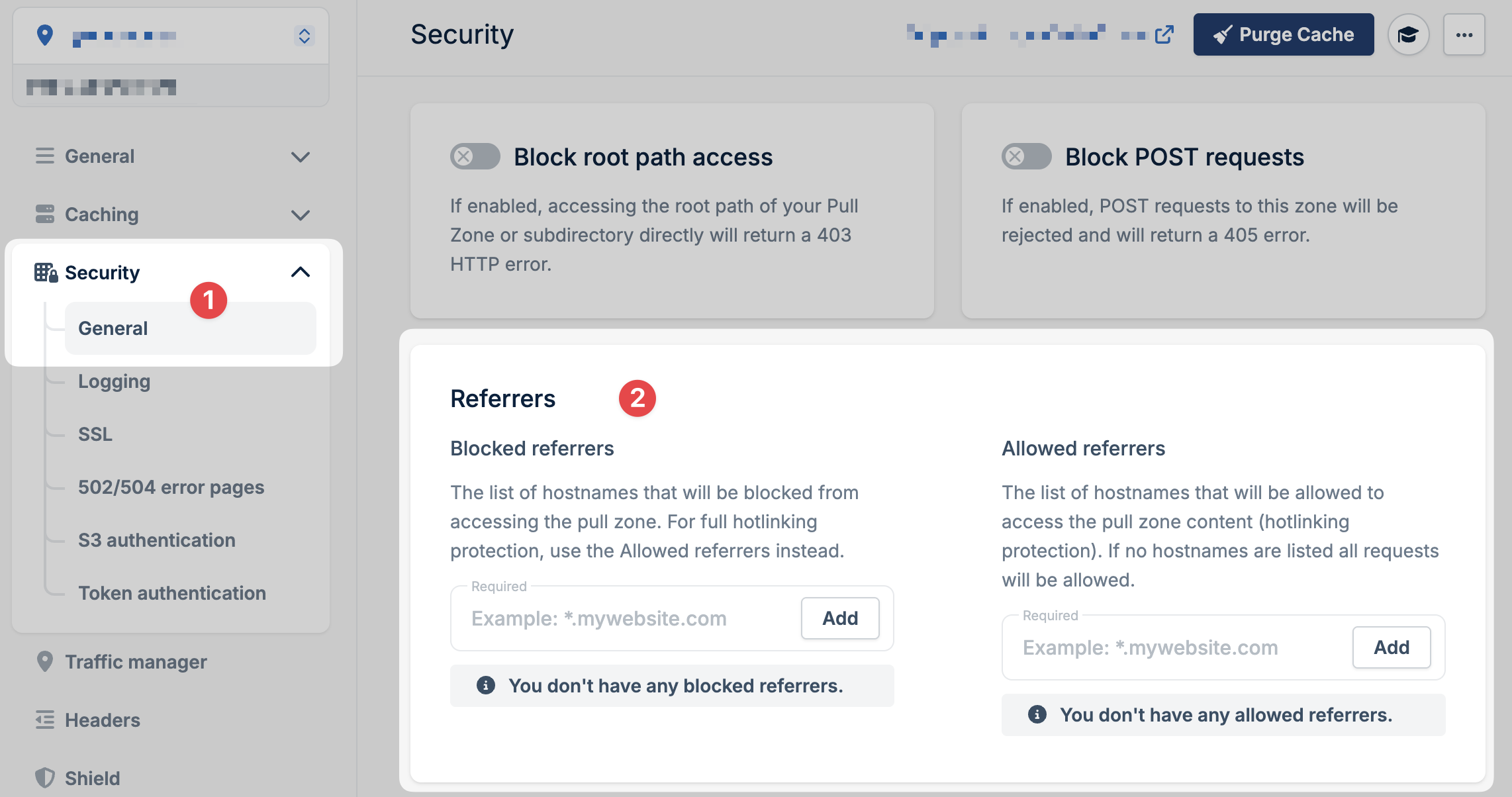
www.example.com) and click Add Allowed Referrer. Repeat for each domain that should have access.Use wildcards for subdomains:
*.example.com allows all subdomains, but doesn’t include the root domain. Add example.com separately if needed.Block direct URL access
Once you have allowed referrers configured, an additional option appears: Block Direct URL File Access. When enabled, requests with an empty referrer header (e.g., someone typing the URL directly into their browser) are also blocked.Common allowed referrers
If you’re using hotlink protection but want social media previews to work (forog:image tags), add referrers for the platforms you use:
*.facebook.com*.twitter.com*.linkedin.com*.pinterest.com