

Bunny CDN does not monitor your origin for file changes. Once a file is cached, it stays cached until its
Cache-Control lifetime expires or it’s evicted to make room for more popular content. To reflect a change immediately, purge the cache or serve the file under a new query string (such as ?v=2).Dashboard
1
Open your Pull Zone
Go to your Pull Zone in the dashboard and click Purge Cache in the top right corner.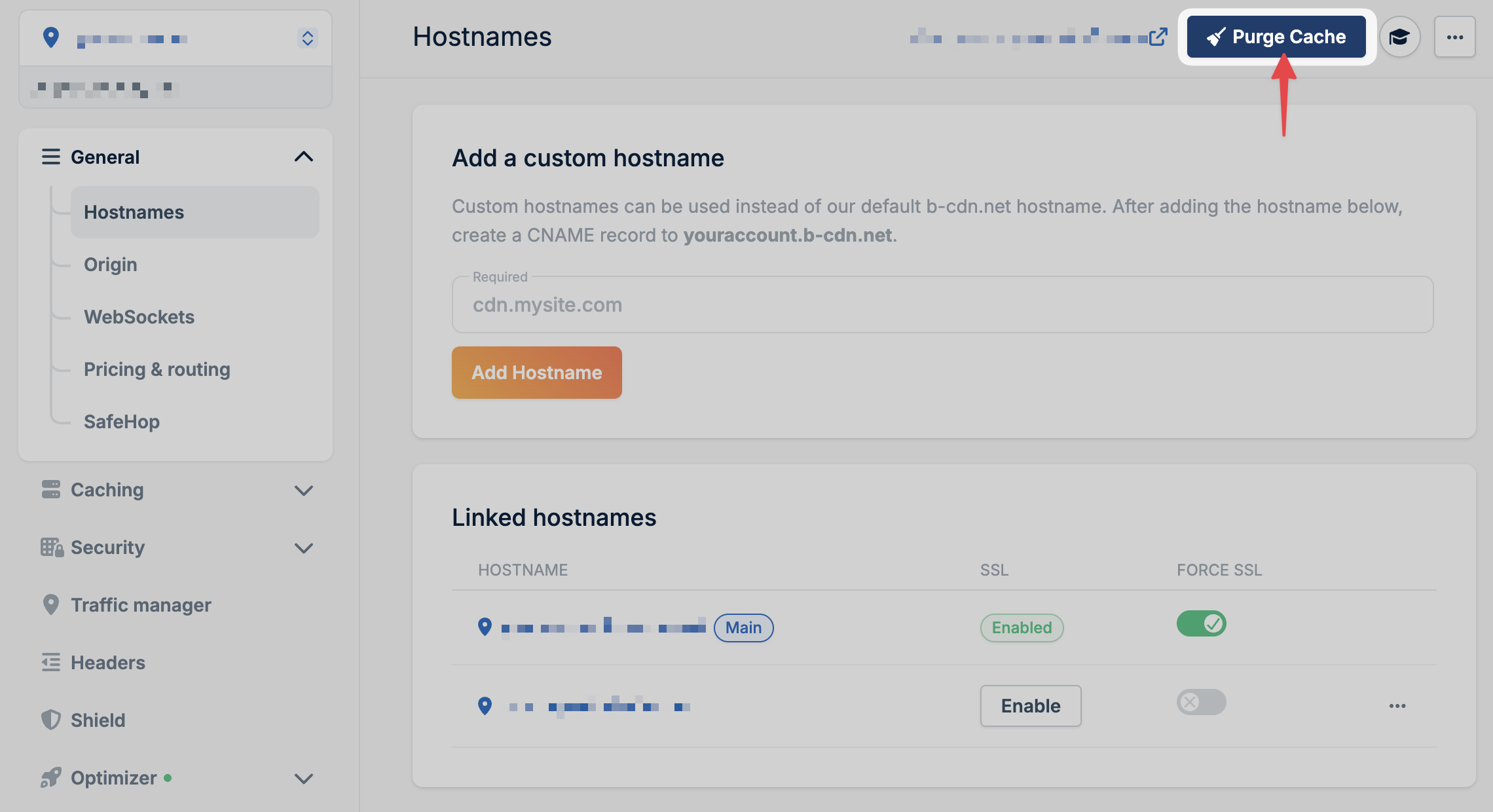
2
Enter a search tag (optional)
Leave the search tag empty to purge the entire Pull Zone. If you enter a tag, only files with a matching 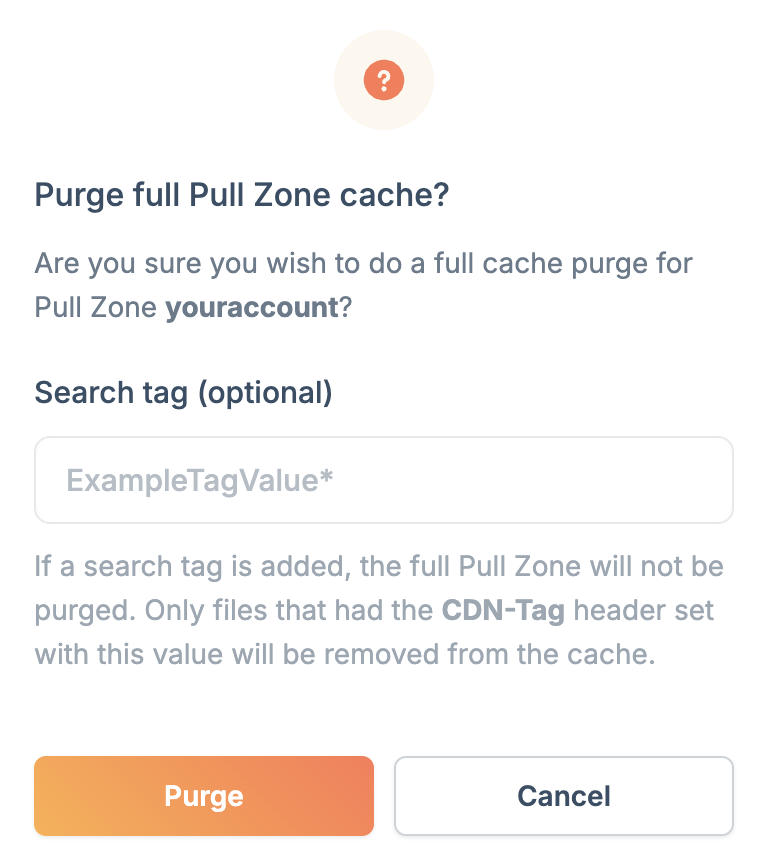
CDN-Tag header are removed. The rest of your cache stays intact.3
Confirm the purge
Click Purge to clear the cache.
API
You can also purge cache programmatically. See the Core API reference for full details.Full Pull Zone purge
Purge by tag
Tag responses from your origin with theCDN-Tag header, then purge all files matching that tag:
CDN-Tag header values are limited to 1024 bytes. Longer values are truncated.Rate limits
To ensure platform stability, the Purge API is protected by rate limits. These limits are designed to keep normal purge workflows fast while preventing abuse or accidental overload. Purge requests are rate-limited using a token bucket mechanism:- Limits are applied per account
- Limits are applied per purge type
- Each purge item consumes 1 token
- Tokens refill steadily over time
429 Too Many Requests response with guidance on when to retry.
Purge types
Purge requests are classified into one of the following types: Exact Purge A single URL without wildcards where the path does not end with/.
*, or the path ends with * or /.
Default rate limits
If your workload requires higher purge throughput, please contact
support to discuss custom rate limits.
Perma-Cache behavior
If you’re using Perma-Cache:- Full zone purge: Clears CDN cache but Perma-Cache switches to a new directory (manually delete the old folder if needed)
- Tag-based purging: Not supported with Perma-Cache enabled