

Prerequisites
- You must be the account owner or have the Manage users permission
Remove a team member
Navigate to Manage Team
Go to Account > Manage Team in your dashboard.
Find the team member
Locate the team member you want to remove in the list. You can see each member’s name, email, and current permissions.
Select Delete from the action menu
Click the … (three dots) action menu on the team member’s row, and click Delete from the dropdown menu.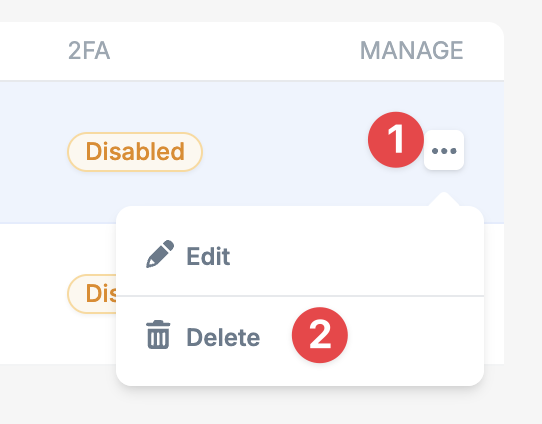
Edit team member permissions
If you need to change a team member’s permissions rather than remove them entirely:Navigate to Manage Team
Go to Account > Manage Team in your dashboard.
Select Edit from the action menu
Click the … (three dots) action menu on the team member’s row, and click Edit from the dropdown menu.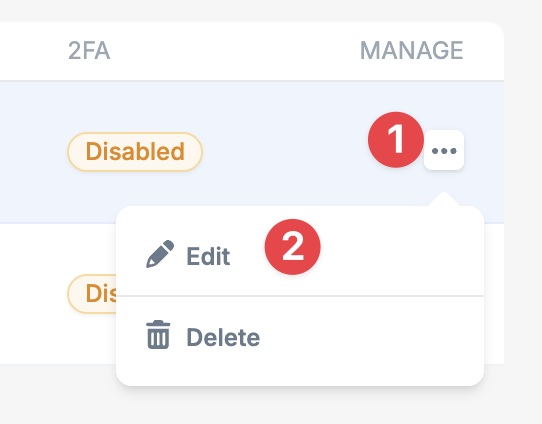
Update permissions
Check or uncheck the permissions as needed:
- Manage zones
- Billing & legal
- Support tickets
- Abuse center
- Manage users
Permission changes take effect immediately. The team member’s dashboard view
will update to reflect their new access level on their next page load.