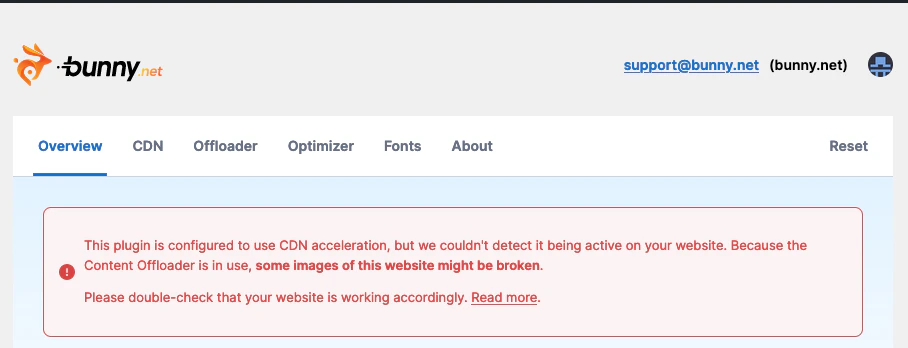
If the bunny.net WordPress plugin shows an error indicating CDN acceleration isn’t detected, this guide covers the most common causes and solutions.
Common causes
Direct origin access
You may be accessing your WordPress admin panel without routing traffic through bunny.net. This can happen if:
- DNS settings have not yet propagated
- Your computer has a stale DNS cache entry
- A static IP for your domain is defined in your computer’s hosts file
Your DNS settings may be incomplete or misconfigured. DNS records that aren’t properly set up for CDN acceleration will prevent detection.
If your site is behind a reverse proxy (e.g., Cloudflare, NGINX, or a load balancer), it may strip or modify the headers that bunny.net uses to confirm CDN usage.
Solutions
Clear your DNS cache
Restart the nscd or systemd-resolved service.
Verify Bunny DNS and CDN settings
In the bunny.net dashboard, go to the DNS section. Make sure the DNS record pointing to your site has the green CDN Proxy icon enabled. If not, edit the DNS record and enable CDN Acceleration.
Verifying CDN Acceleration
You can confirm your setup is working using any of these methods:
- A green CDN Proxy icon next to your DNS record in the bunny.net dashboard
- Response headers from your site containing:
CDN-ProxyVer: 1.04CDN-RequestPullSuccess: TrueCDN-RequestPullCode: 200
- In your WordPress Admin Panel under bunny.net → About → Technical Information → Request Headers, both
Cdn-RequestId and Via: BunnyCDN should appear
Last modified on April 13, 2026