

1
Access the CDN Zone
- From your Bunny dashboard, go to the left-hand navigation menu
- Select the Pull Zone where you want to enable Bunny Optimizer
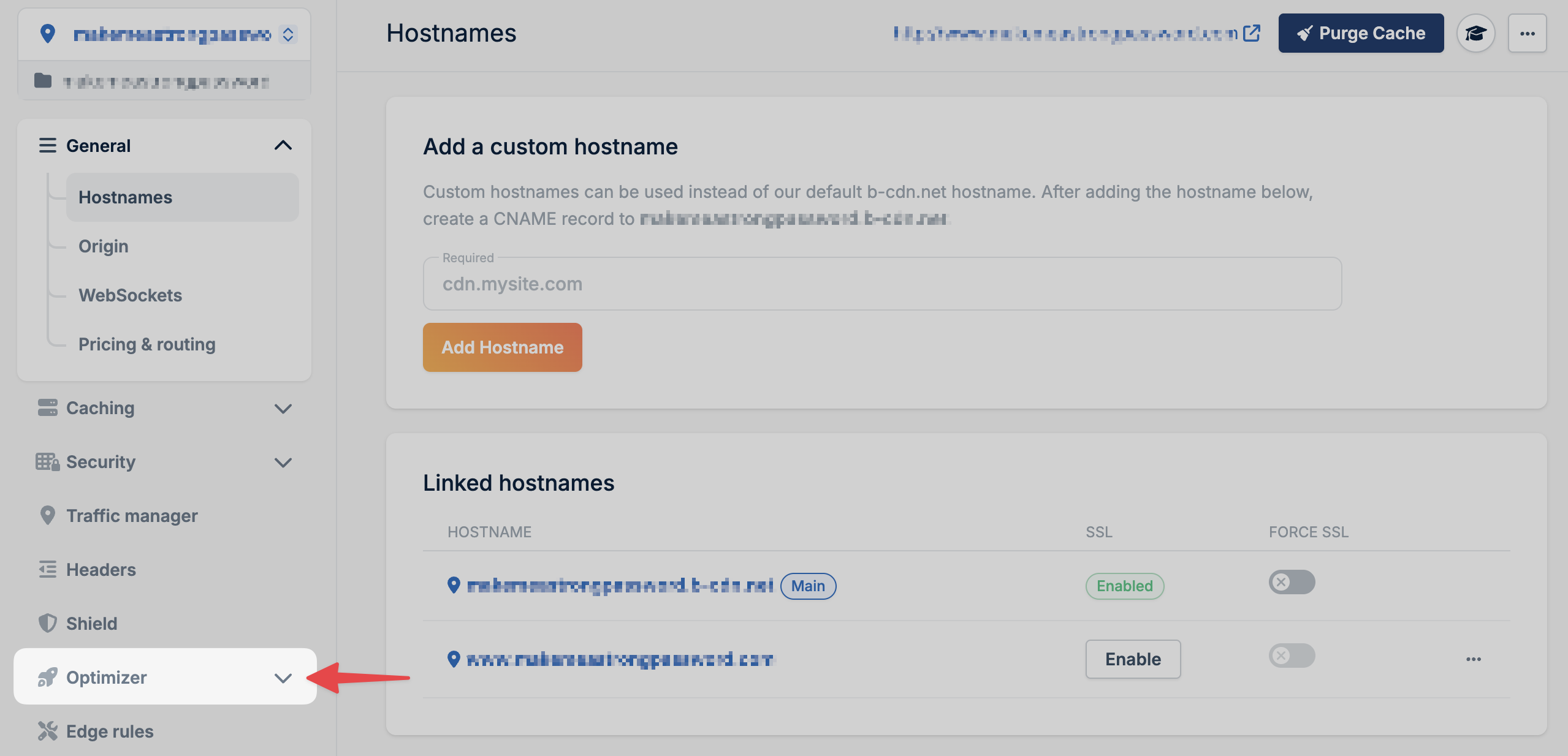
- Once inside your Pull Zone, scroll down in the left-hand menu and click on “Optimizer”
2
Enable Bunny Optimizer
You will now see the Bunny Optimizer overview screen
Click the orange button labeled “Turn on Bunny Optimizer.”
That’s it! Bunny Optimizer is now active for your zone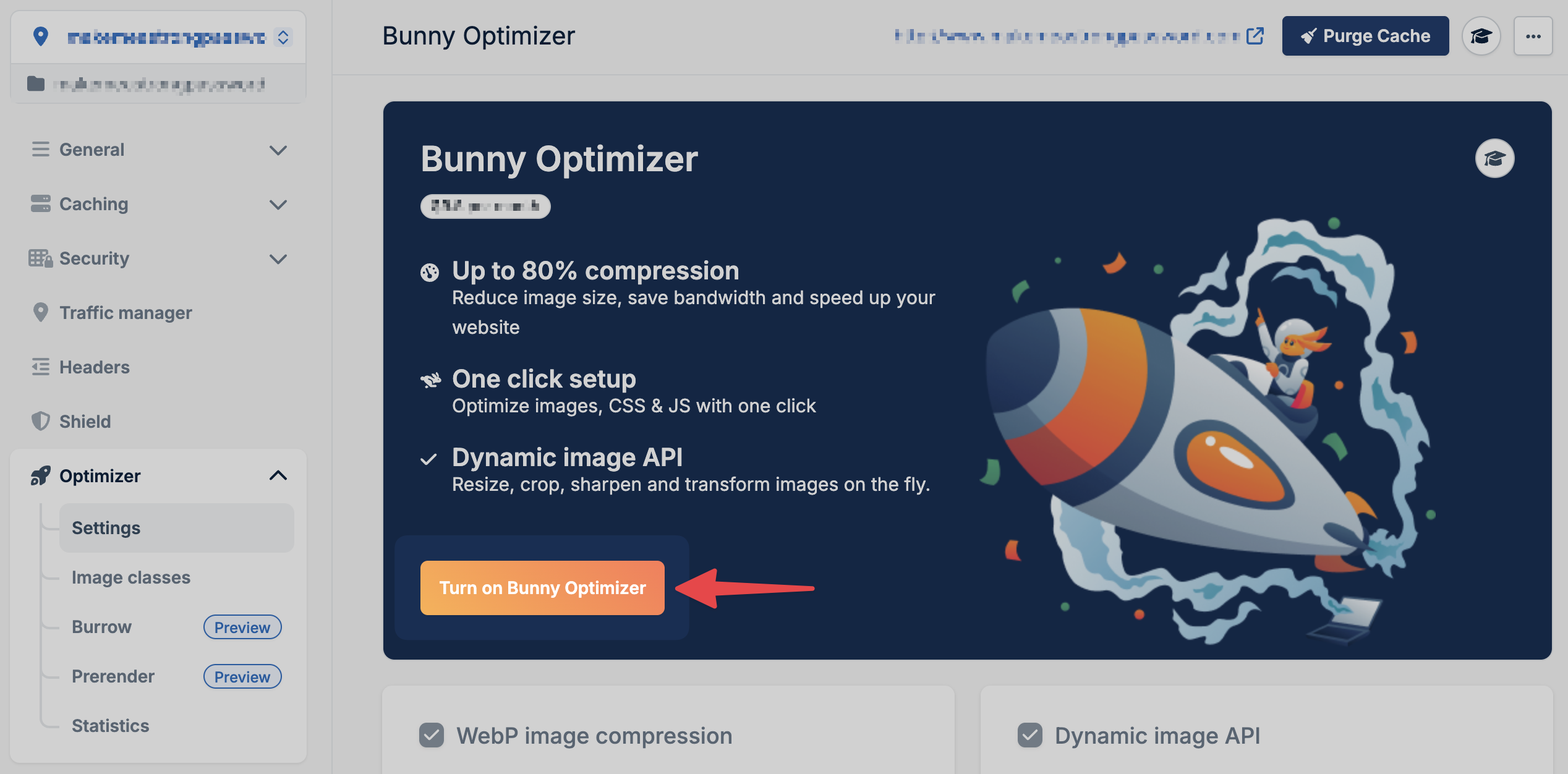
3
Configure automatic optimization (optional)
Image optimization:
- Set maximum image widths for desktop and mobile
- Adjust quality settings (0-100%)
- Enable smart device-specific optimization
- Toggle CSS minification
- Toggle JavaScript minification
- Automatically serves WebP to supported browsers
- No URL changes required
4
Try the Dynamic Images API (optional)
Transform images on the fly by adding query parameters:Learn more in the Dynamic Images guide.
- Go to Optimizer → Settings
- Enable Dynamic Image API
5
Enable advanced features
Burrow Smart Routing
Routes uncached requests over optimized paths for faster origin response
times.
HTML Prerender
Improves SEO for single-page applications by serving rendered HTML to
crawlers.