Access the file browser
- Log in to your bunny.net dashboard
- Navigate to CDN > Storage in the left sidebar
- Select your storage zone
- Click Browse Files
Manage folders
Create and organize folders to structure your files:- In the file browser, click New Folder
- Enter a folder name
- Click Create
When uploading files via API, or SDKs, folders are created automatically if they don’t exist. The dashboard allows you to create folders manually before uploading files.
- Navigate: Click on folder names to browse their contents
- Delete: Click the delete icon next to a folder (folder must be empty)
Upload files
- In the file manager, navigate to your desired directory
- Click the Upload or Upload Folder button
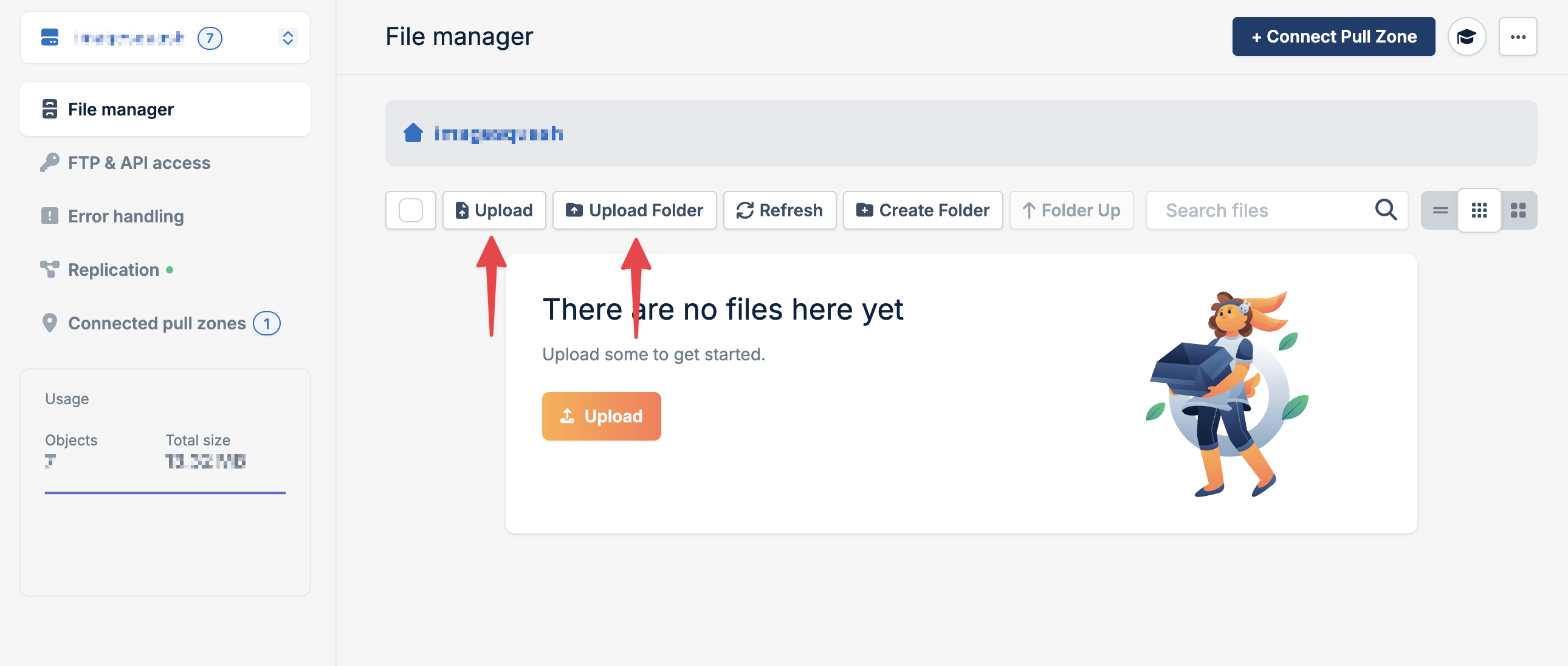
- Select one or multiple files from your computer
- Files will upload and appear in the file list
Bulk actions
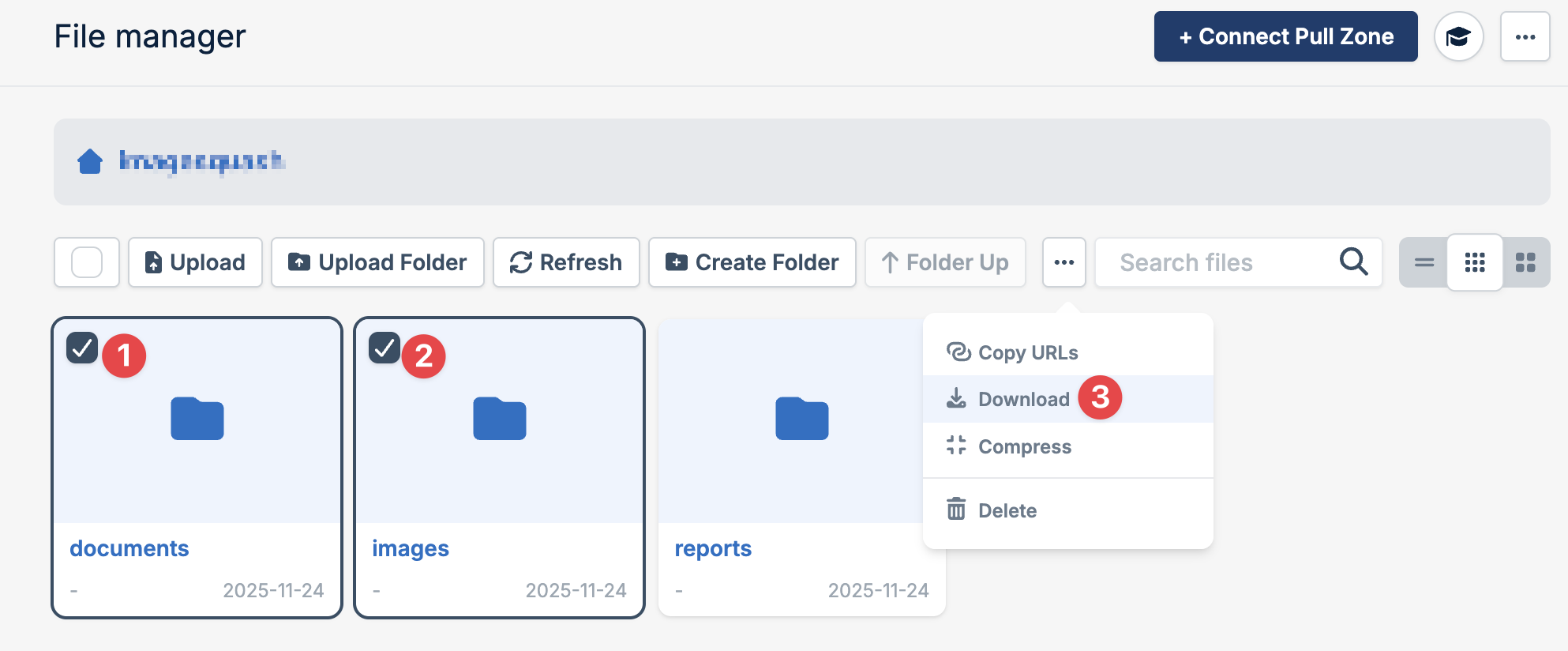
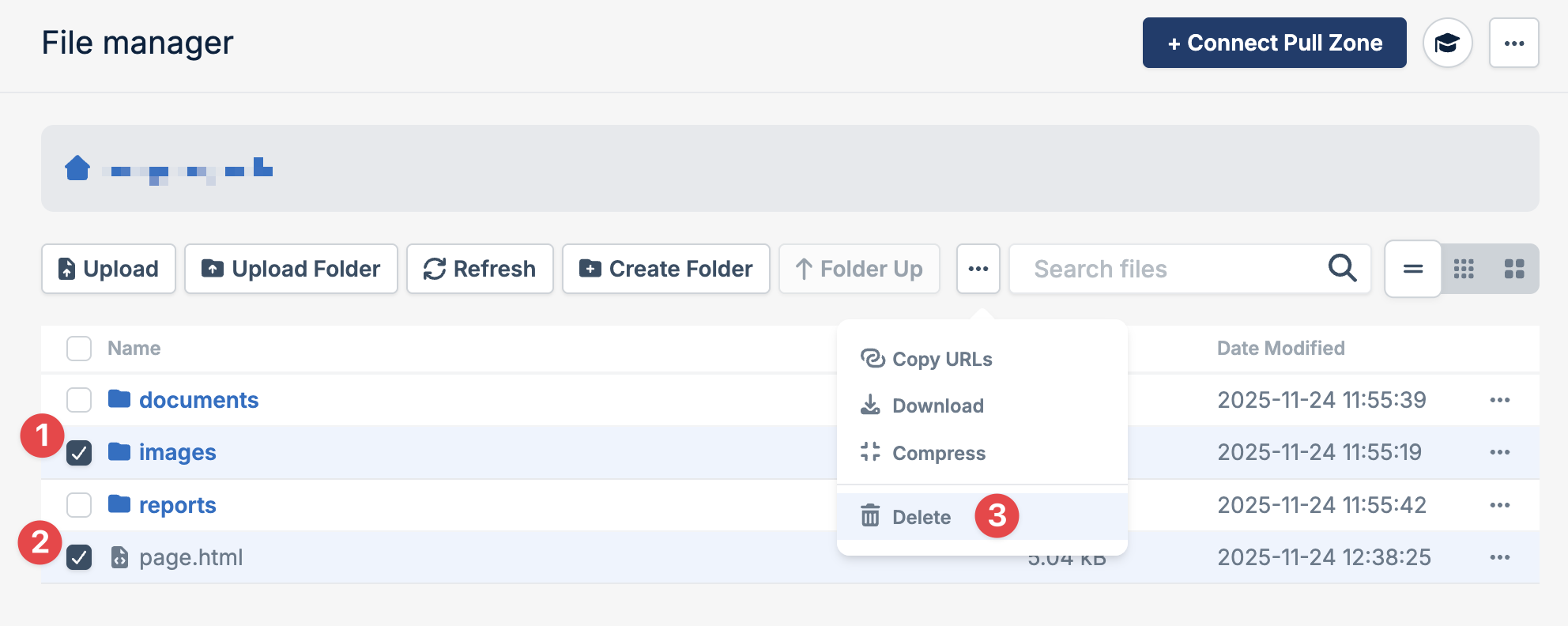
Select multiple files and folders to perform bulk operations:- Check the boxes next to the files or folders you want to manage
- Choose an action from the toolbar:
- Download - Download selected items
- Delete - Delete selected items
- Compress - Compress selected items
You can select individual files, entire folders, or a combination of both for bulk operations. Compressing folders will compress all files within them.
Download files
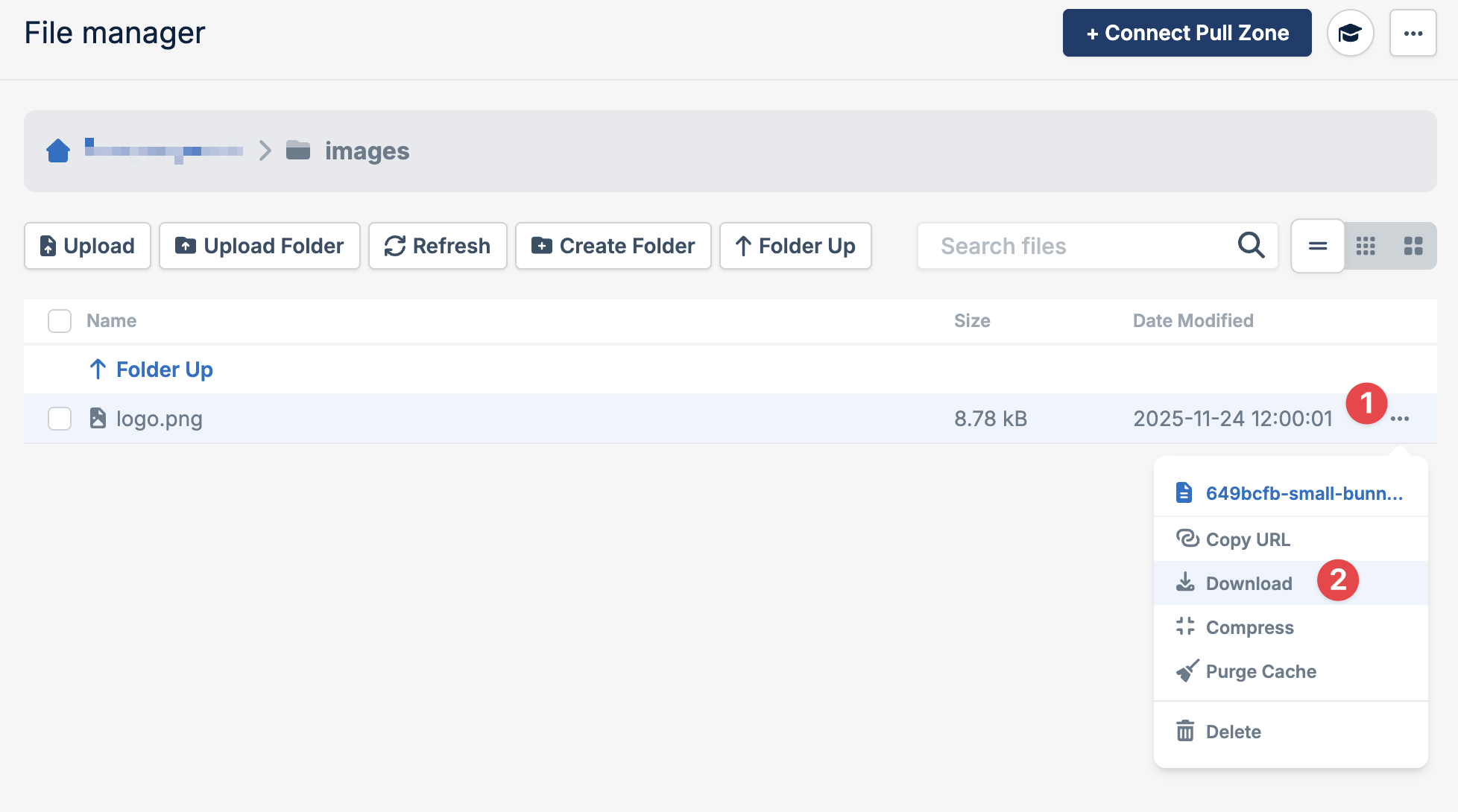
Single file:- Locate the file you want to download
- Click the download icon next to the file
- The file will download to your computer
- Select the files or folders using checkboxes
- Click the Download button in the toolbar
Delete files
- Locate the file or folder you want to delete
- Click the delete icon next to it
- Confirm the deletion
- Select the files or folders using checkboxes
- Click the Delete button in the toolbar
- Confirm the deletion
Compress files
Reduce file size directly from the dashboard without downloading and re-uploading: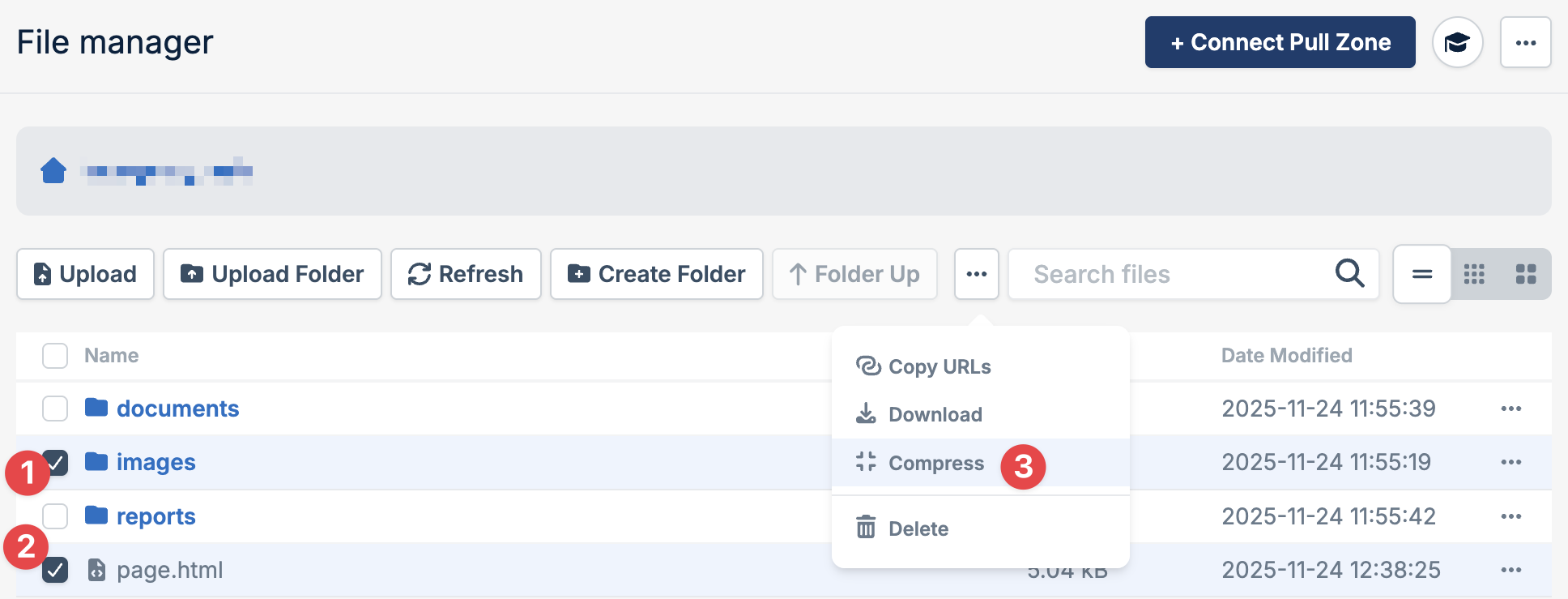
- Locate the file or folder you want to compress
- Click the compress icon next to it
- The file will be compressed and replaced with the compressed version
- Select the files or folders using checkboxes
- Click the Compress button in the toolbar
- Selected items will be compressed in place
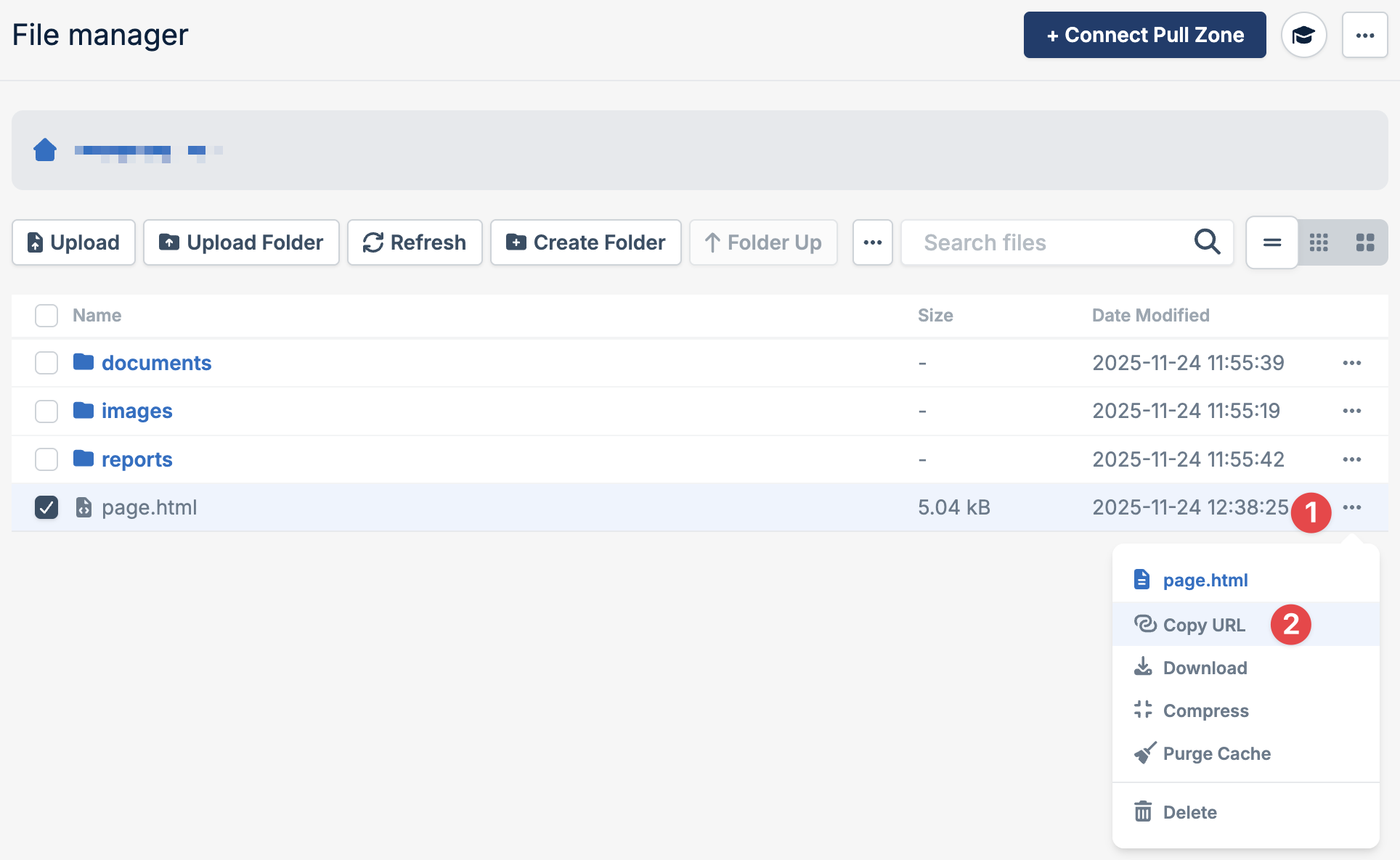
Copy CDN URL
Once you connect a Pull Zone, each file has a CDN URL for public access: