> ## Documentation Index
> Fetch the complete documentation index at: https://docs.bunny.net/llms.txt
> Use this file to discover all available pages before exploring further.
# Color Manipulation
> Adjust saturation, hue, contrast, tint, and sepia for precise color control
Transform the color characteristics of your images with precise control over saturation, hue rotation, contrast, tinting, and sepia effects. Perfect for maintaining brand consistency, creating stylistic effects, or correcting color issues.
## Parameters
Adjust the intensity of colors in the image.
**Range:** `-100` to `100`
**Default:** `0`
Rotate colors around the color wheel.
**Range:** `0` to `100`
**Default:** `0`
Adjust the difference between light and dark tones.
**Range:** `-100` to `100`
**Default:** `0`
Apply a subtractive color tint over the image.
**Format:** Hex color code (e.g., `aaffff`, `ff0000`)
**Default:** `ffffff` (no tint)
Apply a sepia tone effect to the image.
**Range:** `0` to `100`
**Default:** `0`
## How it works
Bunny Optimizer provides multiple color manipulation tools:
**Saturation:** Controls color intensity. Negative values desaturate (moving toward grayscale), positive values increase color vibrancy.
**Hue:** Rotates colors around the color wheel. Every 33 units shifts to the next primary color in the spectrum.
**Contrast:** Adjusts the difference between bright and dark areas. Positive values increase contrast, negative values reduce it.
**Tint:** Applies a subtractive color overlay. The tint color is subtracted from the image, creating a color cast effect.
**Sepia:** Converts the image to warm brown tones reminiscent of antique photographs.
## Usage
### Saturation adjustment
Control the intensity of colors in your image. Negative values desaturate toward grayscale, while positive values increase color vibrancy.
```bash Comparison theme={null}
https://yourzone.b-cdn.net/image.jpg?saturation=VALUE
```
| saturation=-100 | saturation=-25 | saturation=0 | saturation=25 |
| -------------------------------------------------------------------------------------- | ----------------------------------------------------------------------------------------- | ------------------------------------------------------------------------------------- | --------------------------------------------------------------------------------------- |
|  |  |  |  |
A value of `-100` produces a completely grayscale image. Useful for creating black and white photos, reducing oversaturated colors, or maintaining consistent color intensity across different source images.
### Hue rotation
Rotate colors around the color wheel. The hue parameter shifts colors through the spectrum, with every 33 units moving to the next primary color.
```bash Original colors theme={null}
https://yourzone.b-cdn.net/image.jpg?hue=0
```
| hue=0 | hue=33 |
| ------------------------------------------------------------------------------ | --------------------------------------------------------------------------------- |
|  |  |
| hue=66 | hue=90 |
| --------------------------------------------------------------------------------- | --------------------------------------------------------------------------------- |
|  |  |
Perfect for color theme variations, creating stylistic effects, or adjusting color casts without affecting luminosity.
### Contrast adjustment
Adjust the difference between bright and dark areas. Positive values make bright areas brighter and dark areas darker, while negative values flatten the tonal range.
```bash Original contrast theme={null}
https://yourzone.b-cdn.net/image.jpg?contrast=0
```
| contrast=0 | contrast=20 | contrast=-20 |
| --------------------------------------------------------------------------------- | ----------------------------------------------------------------------------------- | ------------------------------------------------------------------------------------ |
|  |  |  |
Useful for making flat images pop, correcting overexposed or underexposed photos, or creating high-contrast stylistic effects.
### Tint application
Apply a subtractive color tint over the image. The tint function works by subtracting the specified color from the image, creating a color cast effect.
```bash Apply cyan tint theme={null}
https://yourzone.b-cdn.net/image.jpg?tint=aaffff
```
| Original | tint=aaffff (cyan) | tint=ffffaa (yellow) | tint=ffaaff (magenta) |
| ----------------------------------------------------------------------------------- | ------------------------------------------------------------------------------------------ | -------------------------------------------------------------------------------------------- | --------------------------------------------------------------------------------------------- |
|  |  |  |  |
Ideal for creating mood-based color grading, maintaining brand color themes, or correcting color temperature issues. Use hex color codes without the `#` prefix.
### Sepia effect
Apply a warm, brown-toned sepia effect reminiscent of antique photographs. The intensity ranges from 0 (no effect) to 100 (full sepia tone).
```bash Apply sepia effect theme={null}
https://yourzone.b-cdn.net/image.jpg?sepia=50
```
| sepia=0 | sepia=50 | sepia=100 |
| ---------------------------------------------------------------------------------------------- | ---------------------------------------------------------------------------------------------------- | -------------------------------------------------------------------------------------------------- |
|  | 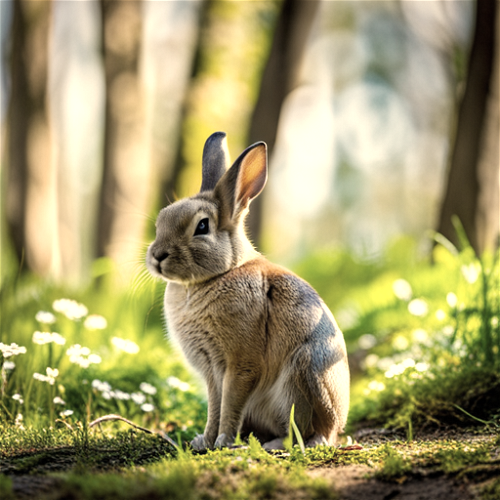 | 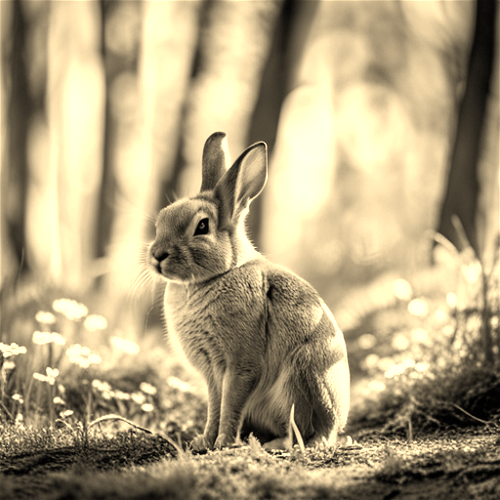 |
Perfect for creating vintage aesthetics, nostalgic effects, or warm-toned artistic presentations.
## Combining color adjustments
Color manipulation parameters work seamlessly together and with other Bunny Optimizer transformations:
```bash Desaturate and increase contrast theme={null}
https://yourzone.b-cdn.net/image.jpg?saturation=-50&contrast=15
```
```bash Hue shift with brightness theme={null}
https://yourzone.b-cdn.net/image.jpg?hue=33&brightness=10
```
```bash Sepia with gamma correction theme={null}
https://yourzone.b-cdn.net/image.jpg?sepia=75&gamma=15
```
```bash Tint and resize theme={null}
https://yourzone.b-cdn.net/image.jpg?tint=aaffff&width=800
```
Combine multiple adjustments to achieve precise color grading, correct multiple issues simultaneously, or create complex stylistic effects.