> ## Documentation Index
> Fetch the complete documentation index at: https://docs.bunny.net/llms.txt
> Use this file to discover all available pages before exploring further.
# How to Seamlessly Migrate Your Domain to bunny.net
> Issue SSL certificates via DNS verification before pointing your domain to bunny.net, enabling seamless zero-downtime migration.
This feature allows you to issue an SSL certificate for your hostname **before pointing your domain to bunny.net**, avoiding HTTPS disruption during migration.
Certificate issuance is performed using **DNS (TXT) validation**, and automatically transitions to **HTTP validation for renewals** after traffic is switched.
In the [bunny.net dashboard](https://dash.bunny.net), select **Add Pull Zone** and configure your origin.
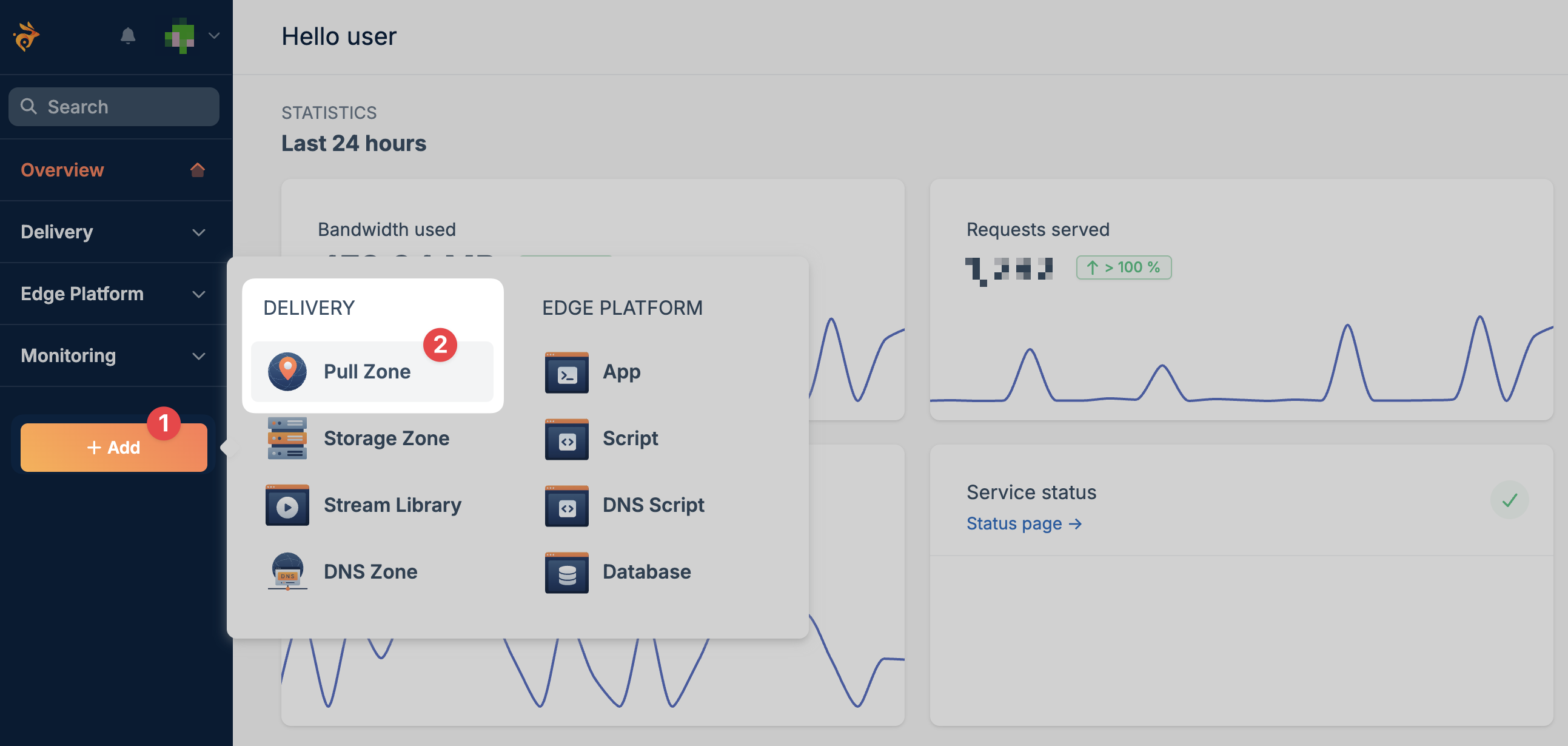 Open your Pull Zone and add your custom hostname (e.g., `cdn.example.com`).
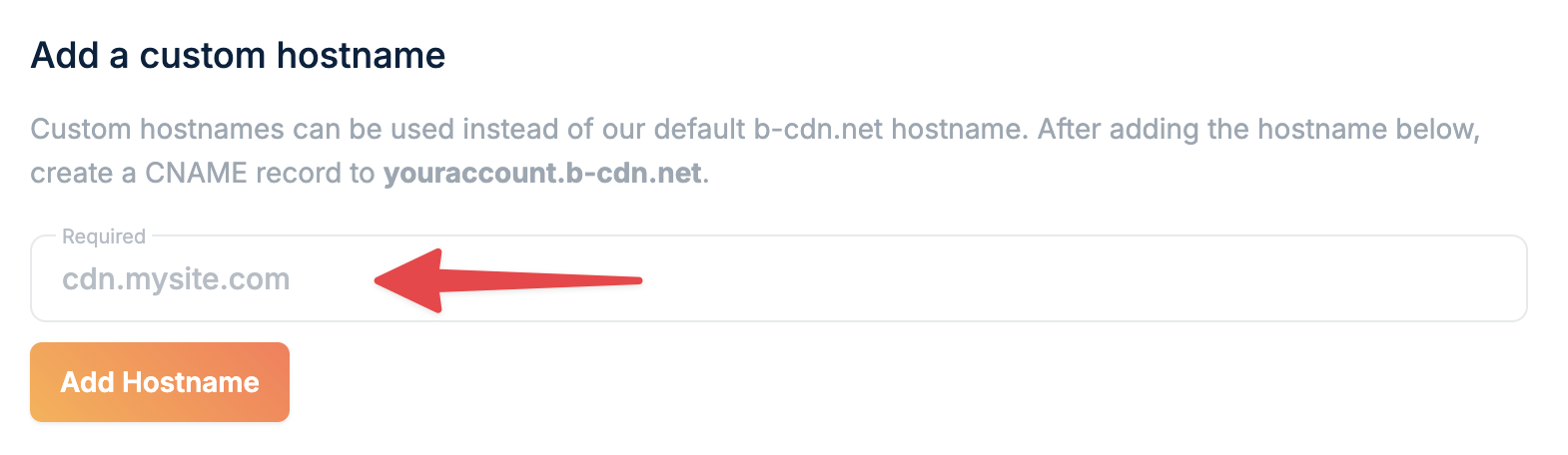 The hostname must be fully configured on the Pull Zone before requesting a certificate.
Initiate certificate issuance using DNS validation:
```bash theme={null}
curl --request POST \
--url https://api.bunny.net/pullzone/{id}/requestExternalDnsCertificate \
--header 'AccessKey: YOUR_API_KEY' \
--header 'Content-Type: application/json' \
--data '
{
"Hostname": "cdn.example.com"
}
'
```
This request returns the DNS TXT record required for domain verification.
View full endpoint documentation
Add the returned TXT record to your domain’s DNS zone.
Example:
```bash theme={null}
_acme-challenge.example.com TXT "verification-token"
```
Wait until the record is publicly resolvable before continuing.
Finalize the process once the TXT record is live:
```bash theme={null}
curl --request POST \
--url https://api.bunny.net/pullzone/{id}/completeExternalDnsCertificate \
--header 'AccessKey: YOUR_API_KEY' \
--header 'Content-Type: application/json' \
--data '
{
"Hostname": "cdn.example.com"
}
'
```
This validates the DNS record and issues the certificate via Let's Encrypt.
View full endpoint documentation
After the certificate is issued, update your domain’s DNS records to point to your Pull Zone hostname (e.g., `yourzone.b-cdn.net`).
* Use a **CNAME record** for subdomains (e.g., `cdn.example.com`)
* Use an **ALIAS/ANAME record** if configuring an apex/root domain
HTTPS will be available immediately after traffic is switched.
After the initial issuance:
* Certificates automatically switch to **HTTP-01 validation**
* Renewals happen automatically
* No further DNS changes are required
* DNS TXT records must be publicly accessible before completing the request
* DNS propagation time depends on your DNS provider
* Certificate issuance depends on successful validation by Let's Encrypt
The hostname must be fully configured on the Pull Zone before requesting a certificate.
Initiate certificate issuance using DNS validation:
```bash theme={null}
curl --request POST \
--url https://api.bunny.net/pullzone/{id}/requestExternalDnsCertificate \
--header 'AccessKey: YOUR_API_KEY' \
--header 'Content-Type: application/json' \
--data '
{
"Hostname": "cdn.example.com"
}
'
```
This request returns the DNS TXT record required for domain verification.
View full endpoint documentation
Add the returned TXT record to your domain’s DNS zone.
Example:
```bash theme={null}
_acme-challenge.example.com TXT "verification-token"
```
Wait until the record is publicly resolvable before continuing.
Finalize the process once the TXT record is live:
```bash theme={null}
curl --request POST \
--url https://api.bunny.net/pullzone/{id}/completeExternalDnsCertificate \
--header 'AccessKey: YOUR_API_KEY' \
--header 'Content-Type: application/json' \
--data '
{
"Hostname": "cdn.example.com"
}
'
```
This validates the DNS record and issues the certificate via Let's Encrypt.
View full endpoint documentation
After the certificate is issued, update your domain’s DNS records to point to your Pull Zone hostname (e.g., `yourzone.b-cdn.net`).
* Use a **CNAME record** for subdomains (e.g., `cdn.example.com`)
* Use an **ALIAS/ANAME record** if configuring an apex/root domain
HTTPS will be available immediately after traffic is switched.
After the initial issuance:
* Certificates automatically switch to **HTTP-01 validation**
* Renewals happen automatically
* No further DNS changes are required
* DNS TXT records must be publicly accessible before completing the request
* DNS propagation time depends on your DNS provider
* Certificate issuance depends on successful validation by Let's Encrypt