> ## Documentation Index
> Fetch the complete documentation index at: https://docs.bunny.net/llms.txt
> Use this file to discover all available pages before exploring further.
# DigitalOcean Spaces
> Accelerate DigitalOcean Spaces content delivery with bunny.net CDN for faster global file access.
Bunny CDN pulls and caches files from your DigitalOcean Space and delivers them from a global edge network, getting your content to users faster than serving from the Space alone. This guide walks you through the setup in three steps.
Prefer to keep your files on bunny.net? [Bunny Storage](/storage) is globally replicated object storage with tight CDN integration, and it offers an [S3-compatible API](/storage/s3) (currently in beta).
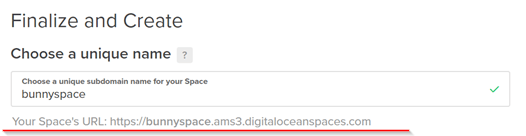
Set up your Space and upload some content, following [DigitalOcean's Spaces quickstart](https://docs.digitalocean.com/products/spaces/). Note the **Space URL** shown on the Create a Space page, you'll use it as your Pull Zone origin.
Disable DigitalOcean's built-in Spaces CDN. Leaving it enabled interferes with Bunny CDN.
 Log in to your [bunny.net dashboard](https://dash.bunny.net) and create a new Pull Zone. Give it a name and set the origin URL to your Space URL from the previous step, then choose your pricing and region tiers and click **Add Pull Zone**. For details, see [How to create your first Pull Zone](/cdn/quickstart).
 Upload some files to your Space and make sure their permissions are set to **Public**, so Bunny CDN can fetch and cache them. Once the configuration has synced to the edge network, request a file through your Pull Zone hostname. For example:
```
https://bunnyspace.ams3.digitaloceanspaces.com/bunny-flying.png
```
becomes:
```
https://bunnyspace.b-cdn.net/bunny-flying.png
```
If the `b-cdn.net` URL serves the file, Bunny CDN is caching content from your Space. Replace your Space URLs with the Bunny CDN URLs in your application to start serving cached content.
Upload some files to your Space and make sure their permissions are set to **Public**, so Bunny CDN can fetch and cache them. Once the configuration has synced to the edge network, request a file through your Pull Zone hostname. For example:
```
https://bunnyspace.ams3.digitaloceanspaces.com/bunny-flying.png
```
becomes:
```
https://bunnyspace.b-cdn.net/bunny-flying.png
```
If the `b-cdn.net` URL serves the file, Bunny CDN is caching content from your Space. Replace your Space URLs with the Bunny CDN URLs in your application to start serving cached content.