> ## Documentation Index
> Fetch the complete documentation index at: https://docs.bunny.net/llms.txt
> Use this file to discover all available pages before exploring further.
# Amazon S3
> Use bunny.net CDN as a caching layer for Amazon S3 to accelerate file delivery and reduce origin costs.
Bunny CDN caches files from your Amazon S3 bucket and delivers them from a global edge network, speeding up delivery and reducing egress costs. This guide walks you through the setup in a few steps.
Prefer to keep your files on bunny.net? [Bunny Storage](/storage) is globally replicated object storage with tight CDN integration, and it offers an [S3-compatible API](/storage/s3) (currently in beta).
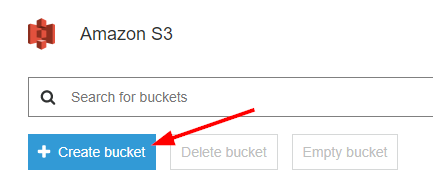
If you don't already have a bucket, sign in to the [AWS Management Console](https://console.aws.amazon.com/s3/), click **Create bucket**, and follow the prompts (see [Amazon's guide](https://docs.aws.amazon.com/AmazonS3/latest/userguide/creating-bucket.html) for details). Upload a file and give it public-read permissions.
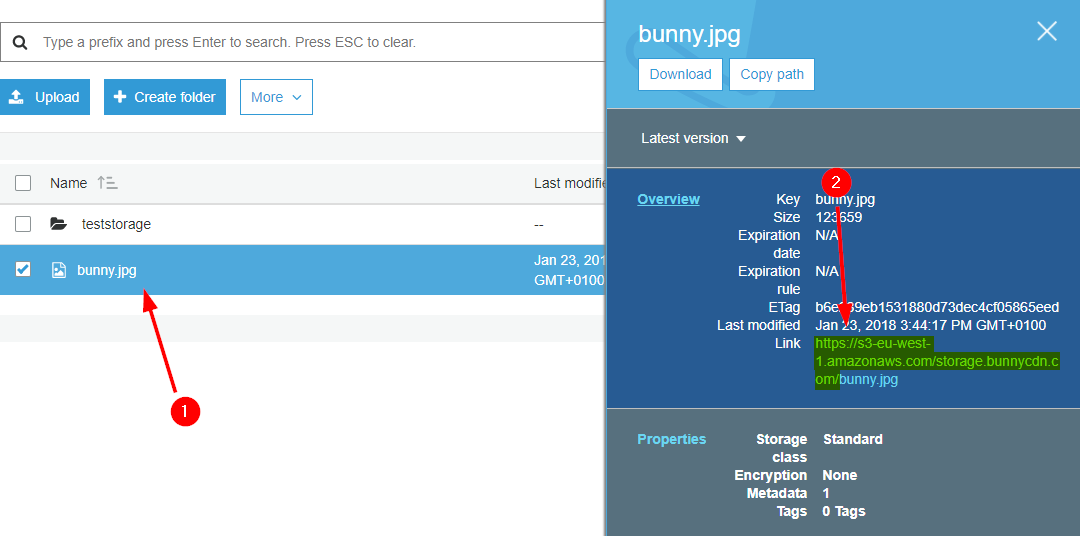
 Click the uploaded file to open its details, which include the public link. Copy only the first part of the link, the hostname and bucket path, for example `https://s3-eu-west-1.amazonaws.com/your-bucket/`. Don't include the file name.
 Log in to your [bunny.net dashboard](https://dash.bunny.net) and create a new Pull Zone. Give it a name (this becomes your CDN hostname) and paste the URL from the previous step into the **Origin URL** field, then choose your pricing tiers and click **Add Pull Zone**. For details, see [How to create your first Pull Zone](/cdn/quickstart).
 Once the configuration has synced to the edge network, request a file through your Pull Zone hostname, for example:
```
https://mys3zone.b-cdn.net/bunny.jpg
```
If the file is served, Bunny CDN is caching content from your bucket. Replace your S3 URLs with the Bunny CDN URLs in your application to start serving cached content.
Once the configuration has synced to the edge network, request a file through your Pull Zone hostname, for example:
```
https://mys3zone.b-cdn.net/bunny.jpg
```
If the file is served, Bunny CDN is caching content from your bucket. Replace your S3 URLs with the Bunny CDN URLs in your application to start serving cached content.