> ## Documentation Index
> Fetch the complete documentation index at: https://docs.bunny.net/llms.txt
> Use this file to discover all available pages before exploring further.
# Remove a Team Member
> Remove users from your bunny.net account or update their permissions.
You can remove team members from your account or edit their permissions at any time from the Manage Team page.
## Prerequisites
* You must be the account owner or have the **Manage users** permission
## Remove a team member
Go to [Account > Manage Team](https://dash.bunny.net/account/users) in your dashboard.
Locate the team member you want to remove in the list. You can see each member's name, email, and current permissions.
Click the **...** (three dots) action menu on the team member's row, and click **Delete** from the dropdown menu.
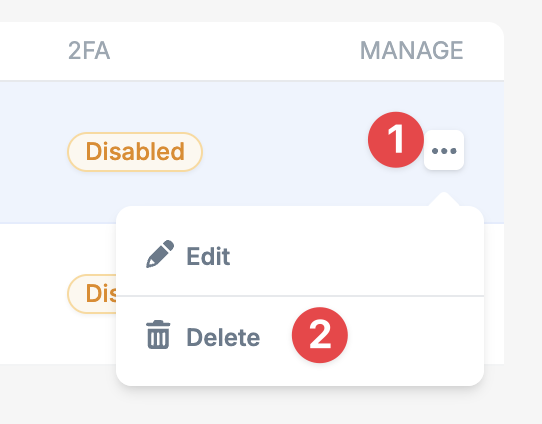 Confirm the deletion when prompted.
Removing a team member immediately revokes their access. They will no longer
be able to log in to your account.
## Edit team member permissions
If you need to change a team member's permissions rather than remove them entirely:
Go to [Account > Manage Team](https://dash.bunny.net/account/users) in your dashboard.
Locate the team member whose permissions you want to update.
Click the **...** (three dots) action menu on the team member's row, and click **Edit** from the dropdown menu.
Confirm the deletion when prompted.
Removing a team member immediately revokes their access. They will no longer
be able to log in to your account.
## Edit team member permissions
If you need to change a team member's permissions rather than remove them entirely:
Go to [Account > Manage Team](https://dash.bunny.net/account/users) in your dashboard.
Locate the team member whose permissions you want to update.
Click the **...** (three dots) action menu on the team member's row, and click **Edit** from the dropdown menu.
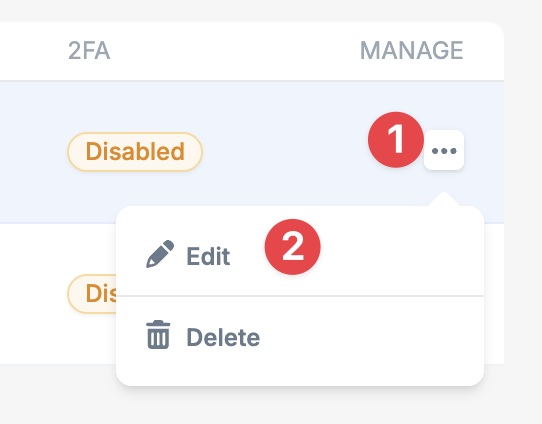 Check or uncheck the permissions as needed:
* **Manage zones**
* **Billing & legal**
* **Support tickets**
* **Abuse center**
* **Manage users**
Click **Save User** to apply the updated permissions.
Permission changes take effect immediately. The team member's dashboard view
will update to reflect their new access level on their next page load.
Check or uncheck the permissions as needed:
* **Manage zones**
* **Billing & legal**
* **Support tickets**
* **Abuse center**
* **Manage users**
Click **Save User** to apply the updated permissions.
Permission changes take effect immediately. The team member's dashboard view
will update to reflect their new access level on their next page load.