> ## Documentation Index
> Fetch the complete documentation index at: https://docs.bunny.net/llms.txt
> Use this file to discover all available pages before exploring further.
# Change Password
> Update your bunny.net account password.
You can change your password at any time from the Account Settings page.
## Change your password
Navigate to [Account Settings](https://dash.bunny.net/account/settings) and
click **Change Password**, or go directly to the [Change
Password](https://dash.bunny.net/account/settings/changepassword) page.
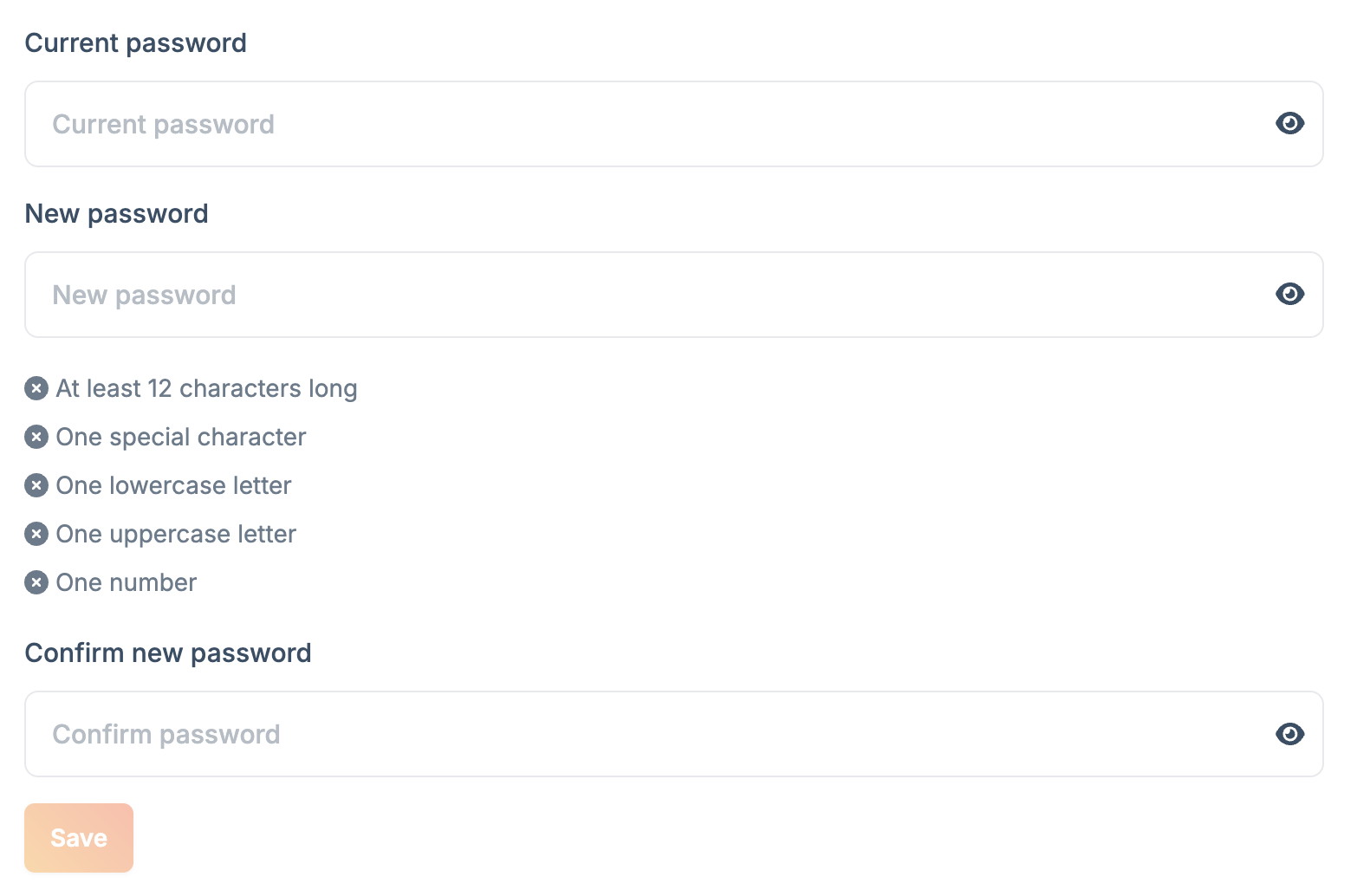 Enter your current password, then enter and confirm your new password.
Your password must contain:
* At least 12 characters
* One special character
* One lowercase letter
* One uppercase letter
* One number
Click **Save** to update your password.
For additional account security, consider enabling [two-factor
authentication](/account/two-factor-authentication).
## Forgot your password?
If you've forgotten your password and can't log in, use the **Forgot Password** link on the [login page](https://dash.bunny.net) to reset it via email.
Enter your current password, then enter and confirm your new password.
Your password must contain:
* At least 12 characters
* One special character
* One lowercase letter
* One uppercase letter
* One number
Click **Save** to update your password.
For additional account security, consider enabling [two-factor
authentication](/account/two-factor-authentication).
## Forgot your password?
If you've forgotten your password and can't log in, use the **Forgot Password** link on the [login page](https://dash.bunny.net) to reset it via email.